
Ace Data Cloud Browser Extension Configuration
The Ace Data Cloud platform provides a browser extension that allows you to conveniently authorize your social media accounts to the Ace Data Cloud platform, facilitating the distribution process of self-media content such as articles and videos.
This article will introduce the installation method of the Ace Data Cloud browser extension.
¶ Download
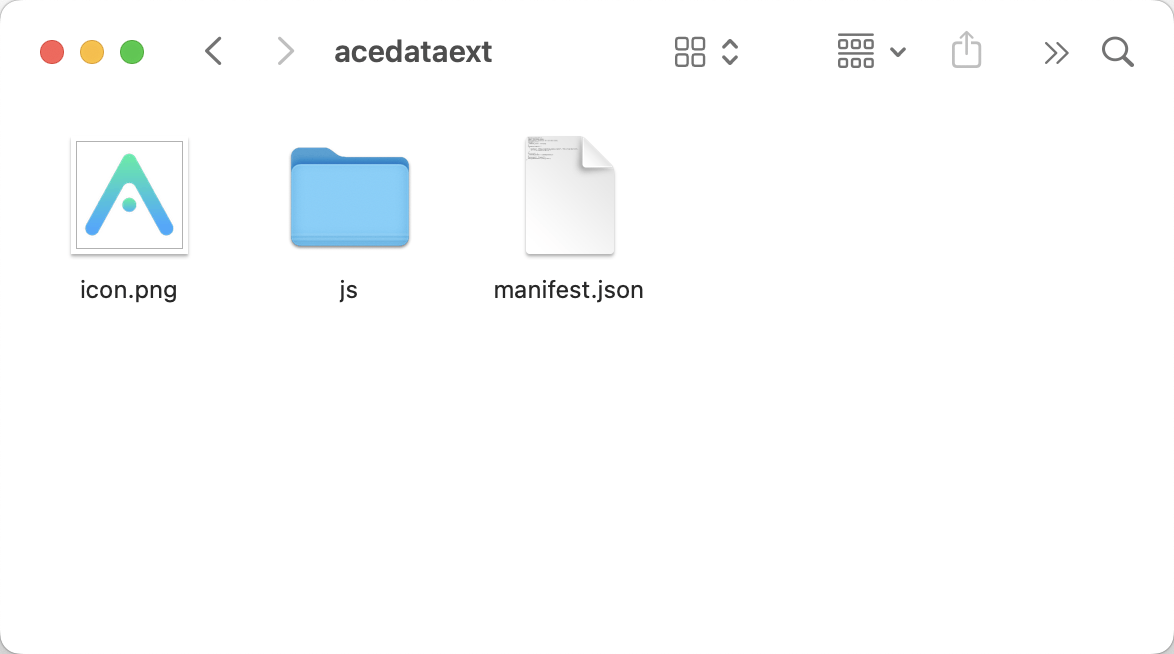
First, you need to download the Ace Data Cloud browser extension from here. The browser extension is a compressed file; after downloading, unzip it to obtain a folder, as shown below:
¶ Installation
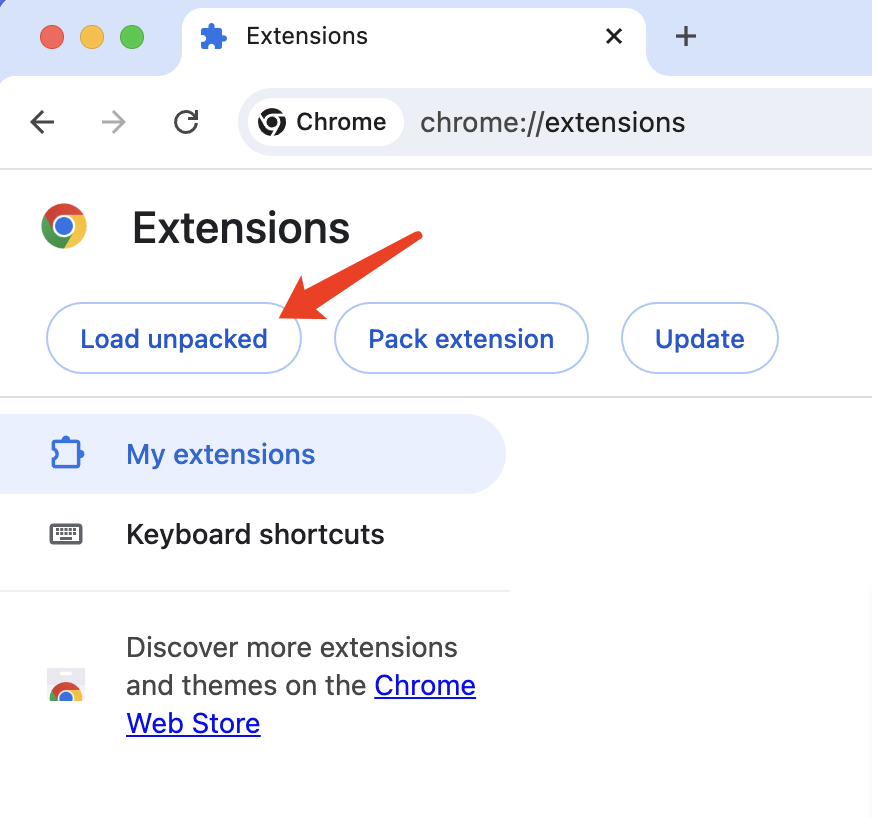
Open the Chrome browser’s extension management page by entering chrome://extensions in the URL bar. Then click the Load unpacked button to load the unzipped browser extension, as shown below:
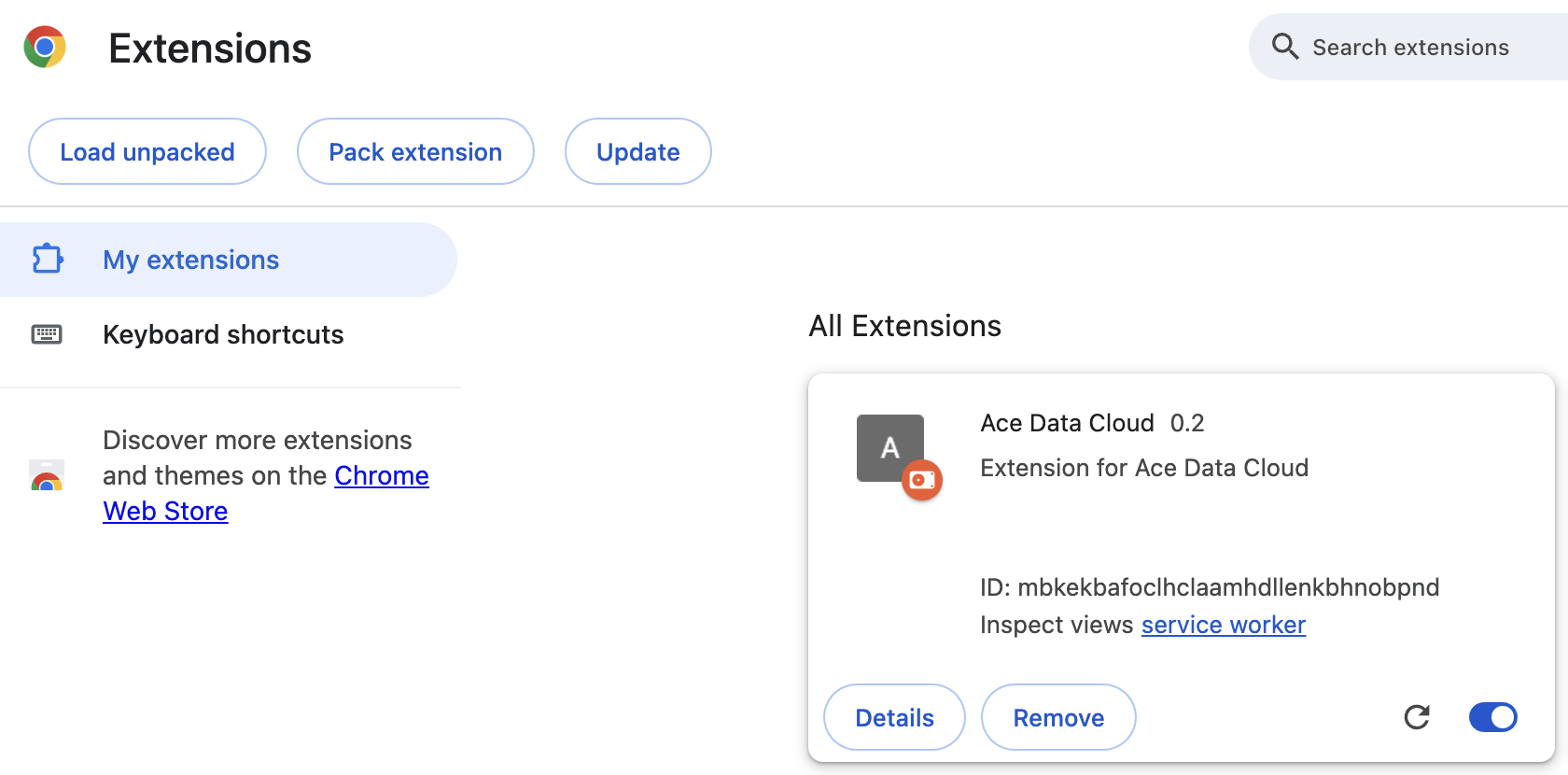
Next, select the folder you just downloaded to successfully install the extension, as shown below:
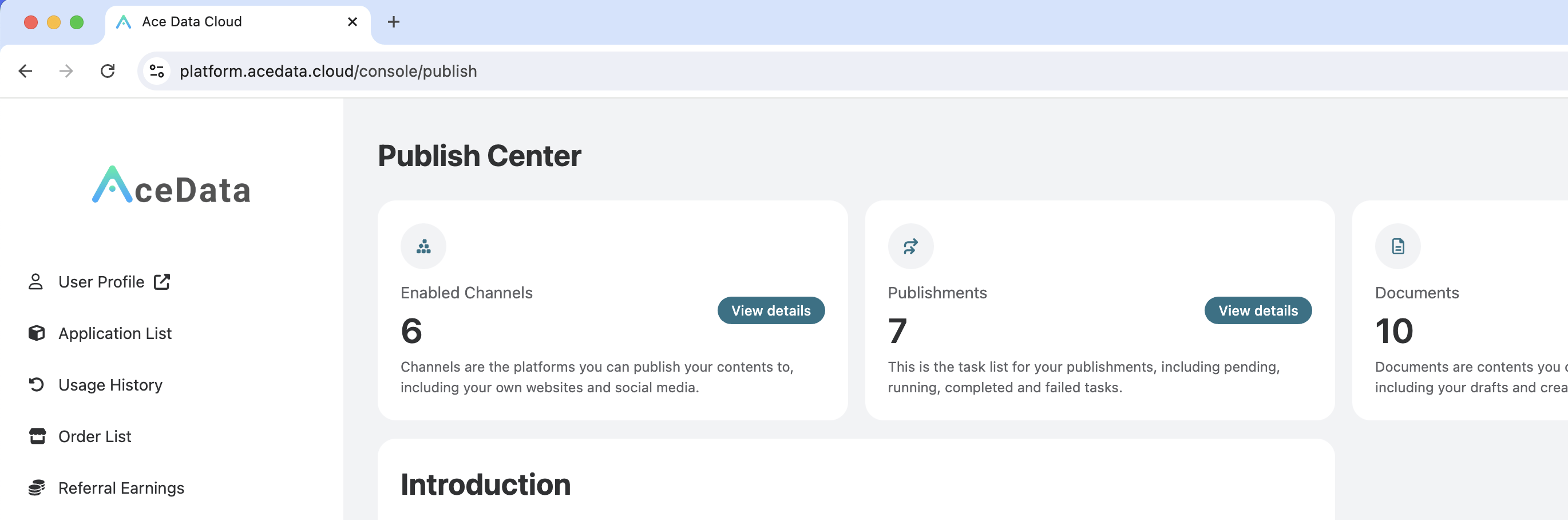
Then return to the Ace Data Cloud Distribution Center page and refresh the webpage. If the prompt "Browser extension not installed" no longer appears, the installation was successful, as shown below:
¶ Usage
Next, go to the Ace Data Cloud Channels page and click to bind a channel, as shown below:
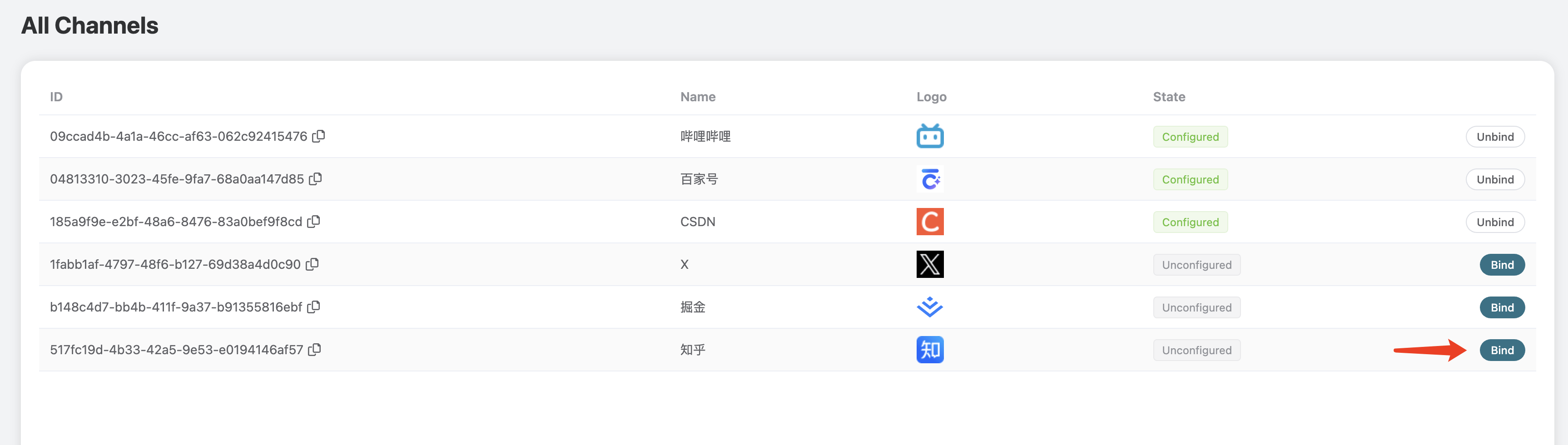
Once completed, your social media accounts will be authorized for use by the Ace Data Cloud platform, allowing you to distribute articles using the Ace Data Cloud platform.