
Claude Code Terminal (CLI) User Guide
Claude Code is an Agentic Coding tool launched by Anthropic, also known as one of the world's strongest programming agents. The terminal CLI is the core experience of Claude Code, allowing you to run the claude command in any terminal and collaborate with AI in programming using natural language.
This document mainly introduces how to install, configure, and use Claude Code CLI through the proxy service of AceData Cloud in the terminal.
¶ Application Process
To use Claude Messages service page, first open the Ace Data Cloud Console and copy your API Token.
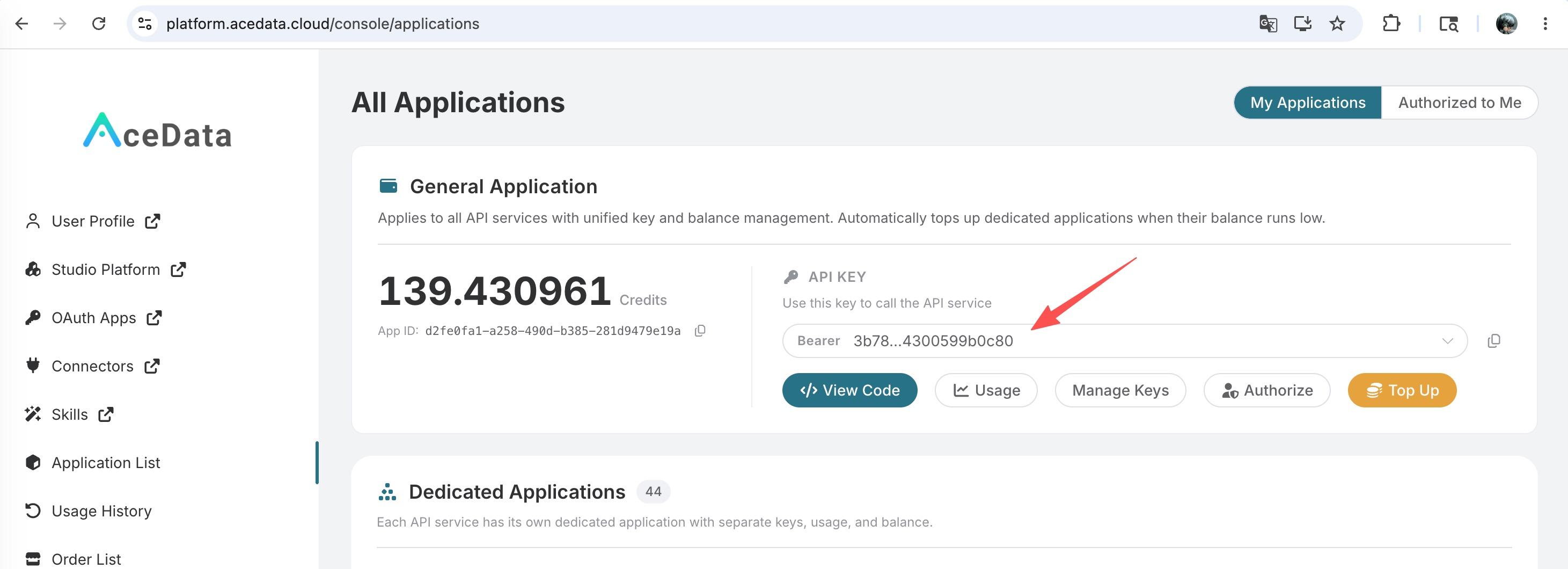
If you are not logged in, you will be redirected to sign in and brought back to this page automatically.
A single API Token works across every service on the platform — no need to subscribe per service. New accounts receive free starter credit; when it runs low you can top up your shared balance in the console.
📘 Full documentation: Claude Messages service page →
¶ Install Claude Code
¶ System Requirements
- macOS, Linux, or Windows (including WSL)
- Node.js is not required; the native installation method will automatically handle dependencies
¶ Installation Methods
Claude Code supports multiple installation methods:
Method 1: Native Installation (Recommended)
macOS / Linux / WSL:
curl -fsSL https://claude.ai/install.sh | bash
Windows PowerShell:
irm https://claude.ai/install.ps1 | iex
Windows CMD:
curl -fsSL https://claude.ai/install.cmd -o install.cmd && install.cmd && del install.cmd
Method 2: Homebrew (macOS / Linux)
brew install claude-code
Method 3: WinGet (Windows)
winget install Claude.ClaudeCode
The native installation will automatically update in the background, always keeping the latest version.
¶ Configure AceData Cloud API
After installation, you will be prompted to log in to your Anthropic official account by default. We can use environment variables to configure the AceData Cloud proxy API, without the need for an official subscription.
¶ Configure Environment Variables
There are two ways to configure environment variables; you can choose either.
Method 1: Set in Shell Configuration File (Recommended)
Add the following content to your Shell configuration file (~/.zshrc, ~/.bashrc, or ~/.bash_profile), replacing {token} with the API token you obtained from the AceData Cloud console:
# AceData Cloud - Claude Code Proxy Configuration
export ANTHROPIC_AUTH_TOKEN="{token}"
export ANTHROPIC_BASE_URL="https://api.acedata.cloud"
After modification, execute the following command to make the configuration effective:
source ~/.zshrc # or source ~/.bashrc
Method 2: Set in Claude Code settings.json
Edit ~/.claude/settings.json (create it if it does not exist) and add the env configuration:
{
  "env": {
    "ANTHROPIC_AUTH_TOKEN": "{token}",
    "ANTHROPIC_BASE_URL": "https://api.acedata.cloud"
  }
}
The advantage of this method is that the environment variables only apply to Claude Code and do not affect other programs.
Tip: The API token can be viewed in the AceData Cloud console. The value of
ANTHROPIC_AUTH_TOKENwill automatically have theBearerprefix added when sent to the server.
¶ Getting Started
¶ Start Interactive Mode
Open the terminal, navigate to your project directory, and then run:
cd /path/to/your/project
claude
You will see the welcome screen of Claude Code, and you can start interacting by entering natural language.
¶ Common Commands
| Command | Description | Example |
|---|---|---|
claude |
Start interactive mode | claude |
claude "task" |
Execute a one-time task | claude "fix build error" |
claude -p "query" |
Execute query and exit | claude -p "explain this function" |
claude -c |
Continue the most recent conversation in the current directory | claude -c |
claude -r |
Restore the previous conversation | claude -r |
claude commit |
Create a Git commit | claude commit |
¶ Interactive Mode Commands
In interactive mode, you can use the following built-in commands:
| Command | Function |
|---|---|
/help |
Show help information |
/clear |
Clear conversation history |
/config |
Open settings panel |
/model |
Switch model |
/mcp |
Manage MCP service |
/compact |
Compress context |
/memory |
Manage memory |
/login |
Switch account |
exit or Ctrl+C |
Exit |
¶ Conversation Interaction Examples
# Analyze project
> what does this project do?

# Fix Bug
> there's a bug where users can submit empty forms - fix it

# Write Tests
> write unit tests for the calculator functions

# Refactor Code
> refactor the authentication module to use async/await

# Git Operations
> commit my changes with a descriptive message
> create a pr for this feature
¶ Advanced Usage
¶ Piping and Scripting
Claude Code follows the Unix philosophy and supports piping and scripting operations:
# Monitor logs and alert automatically
tail -f app.log | claude -p "notify me if an anomaly is detected"

# Automatically translate new text
claude -p "translate any new text strings to French and create a PR"

# Code Review
git diff main | claude -p "review these changes"
¶ Environment Variable Reference
Here are the commonly used environment variables supported by Claude Code:
| Variable | Description |
|---|---|
ANTHROPIC_AUTH_TOKEN |
Value for custom Authorization header (automatically adds Bearer prefix) |
ANTHROPIC_API_KEY |
API key (sent as X-Api-Key header) |
ANTHROPIC_BASE_URL |
API base URL |
ANTHROPIC_MODEL |
Override default model |
ANTHROPIC_SMALL_FAST_MODEL |
Haiku level model (for background tasks) |
MAX_THINKING_TOKENS |
Set thinking token budget (set to 0 to disable thinking mode) |
DISABLE_COST_WARNINGS |
Set to 1 to disable cost warnings |
¶ CLAUDE.md Project Memory
Create a CLAUDE.md file in the project root directory to provide project-specific instructions and context for Claude Code. Claude will automatically load this file at startup.
# Project Description
This is a full-stack project using Django + Vue.js.

## Coding Standards
- Use Python 3.12
- Follow PEP 8 coding style
- All APIs need to have unit tests
¶ Frequently Asked Questions
¶ What to do if the connection fails?
- Check if the
~/.claude/config.jsonfile is correctly created, with the content{"primaryApiKey": "self"} - Confirm that the environment variables are set correctly:
echo $ANTHROPIC_AUTH_TOKEN echo $ANTHROPIC_BASE_URL - Confirm that the API token is valid (can be checked in the console)
- Try restarting the terminal
¶ command not found: claude
If you see command not found after installation, please try:
- Close and reopen the terminal
- Check PATH:
echo $PATH - Reinstall:
curl -fsSL https://claude.ai/install.sh | bash
¶ How to check remaining quota?
Log in to the AceData Cloud console to view the current account's remaining quota and usage.
¶ Learn more
- 📖 Claude Code CLI Official Documentation
- 📋 CLI Command Reference
- 🔧 AceData Cloud Claude Code Service
- 💬 If you have any questions, feel free to contact us through the platform's customer service