
OpenAI Images Generations API Application and Usage
The OpenAI Images Generations API currently supports various image generation models, including the classic dall-e-3, the text rendering enhanced gpt-image-1, the latest generation gpt-image-2, as well as the nano-banana / nano-banana-2 / nano-banana-pro series models accessed through the same interface. All of them can generate high-quality images based on textual descriptions.
This document mainly introduces the usage process of the OpenAI Images Generations API, which allows easy access to the OpenAI series image generation capabilities.
¶ Application Process
To use OpenAI Images Generations API, first open the Ace Data Cloud Console and copy your API Token.
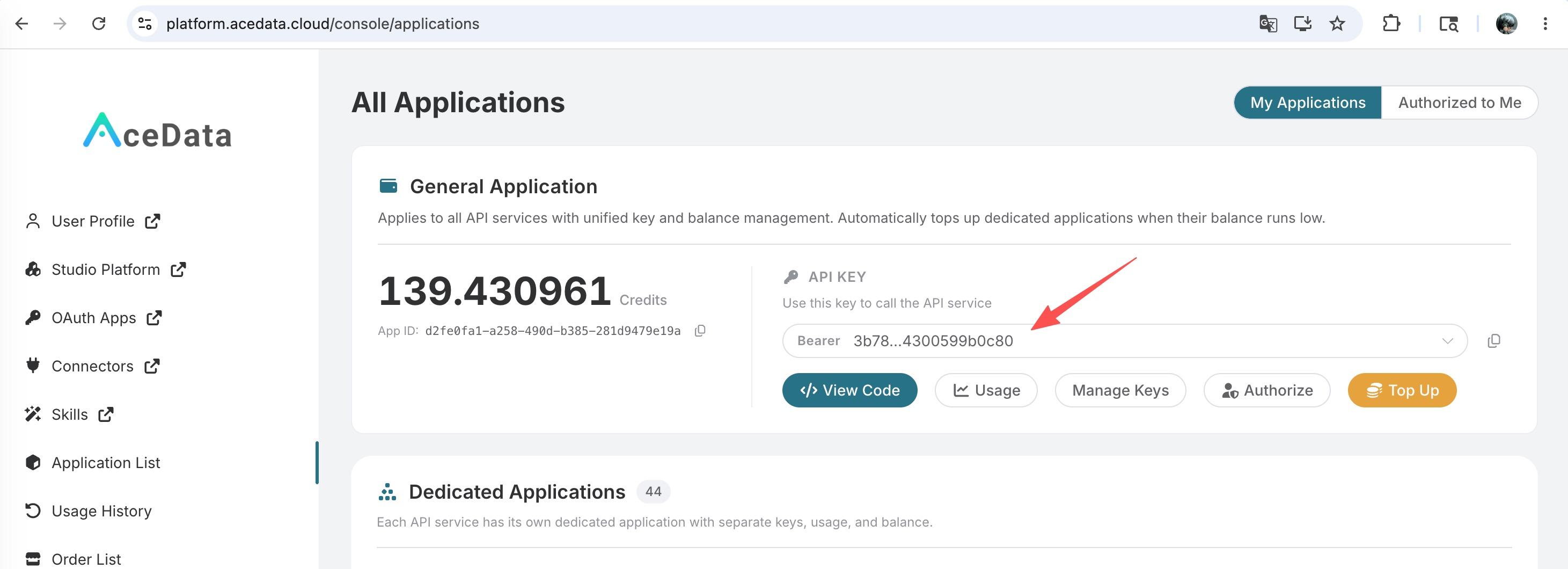
If you are not logged in, you will be redirected to sign in and brought back to this page automatically.
A single API Token works across every service on the platform — no need to subscribe per service. New accounts receive free starter credit; when it runs low you can top up your shared balance in the console.
📘 Full documentation: OpenAI Images Generations API →
¶ GPT-Image-2 Model
gpt-image-2 is the new generation image generation model launched by OpenAI. Compared with dall-e-3 and gpt-image-1, it has significant improvements in the following aspects:
- Stronger instruction adherence: Able to accurately understand complex composition, counting, positional relationships, and other structured instructions.
- Clearer text rendering: English and numbers in scenes like posters, menus, infographics, and logos are almost never garbled.
- Richer style expression: Natively supports various styles such as cinematic portraits, vintage posters, children's illustrations, product photography, infographics, etc.
- Native multi-aspect ratio + high-resolution support: Covers 5 aspect ratios (1:1, 4:3, 3:4, 16:9, 9:16) with 3 resolution tiers (1K / 2K / 4K).
The calling method is exactly the same as other models, just set the model field to gpt-image-2. The returned url in the result is a permanently hosted image link on platform.cdn.acedata.cloud, which can be directly opened in a browser or embedded in a webpage.
¶ Supported size Values
gpt-image-2 only validates the format of size. As long as it is not auto or an empty string, it must match the WIDTHxHEIGHT format (e.g., 1024x1024, 2048x1152, 800x600); any other format will return 400. All sizes (1K / 2K / 4K / custom) are charged uniformly per image, with no extra charge for size.
Upstream hard constraints for custom sizes: width and height must be multiples of 16, the longer side ≤ 3840, total pixels ≤ 8,294,400. Exceeding these limits will be rejected upstream and return 4xx.
| Aspect Ratio | 1K Recommended | 2K Recommended | 4K Recommended |
|---|---|---|---|
| 1:1 | 1024x1024 |
2048x2048 |
2880x2880 |
| 4:3 | 1536x1024 |
2048x1536 |
3264x2448 |
| 3:4 | 1024x1536 |
1536x2048 |
2448x3264 |
| 16:9 | 1792x1024 |
2048x1152 |
3840x2160 |
| 9:16 | 1024x1792 |
1152x2048 |
2160x3840 |
You can also pass
size: "auto"or omit thesizefield, in which case the model will choose the default size automatically.For the 1K tier, upstream output does not guarantee strict pixel alignment — if you pass
1024x1024, you might get1254x1254, but the aspect ratio is maintained. If you reuse this assize, the billing remains unchanged.4K single calls usually take 4–8 minutes; it is recommended to use the
callback_urlasynchronous callback mechanism described later.
About the
nparameter
gpt-image-2currently does not supportn > 1: this parameter will be silently ignored. Whether you passn=1orn=10, only one image will be returned per request and charged as one image. If you need multiple candidate images at once, please make multiple concurrent requests (it is recommended to pass differentpromptor differentseedvalues; otherwise, the images may be very similar). This limitation also applies togpt-image-1/gpt-image-1.5, and thenano-banana/nano-banana-2/nano-banana-proseries.dall-e-2is currently the only model that natively supportsn > 1;dall-e-3only supportsn = 1.
Below are several real examples from different perspectives to intuitively experience the capabilities of gpt-image-2.
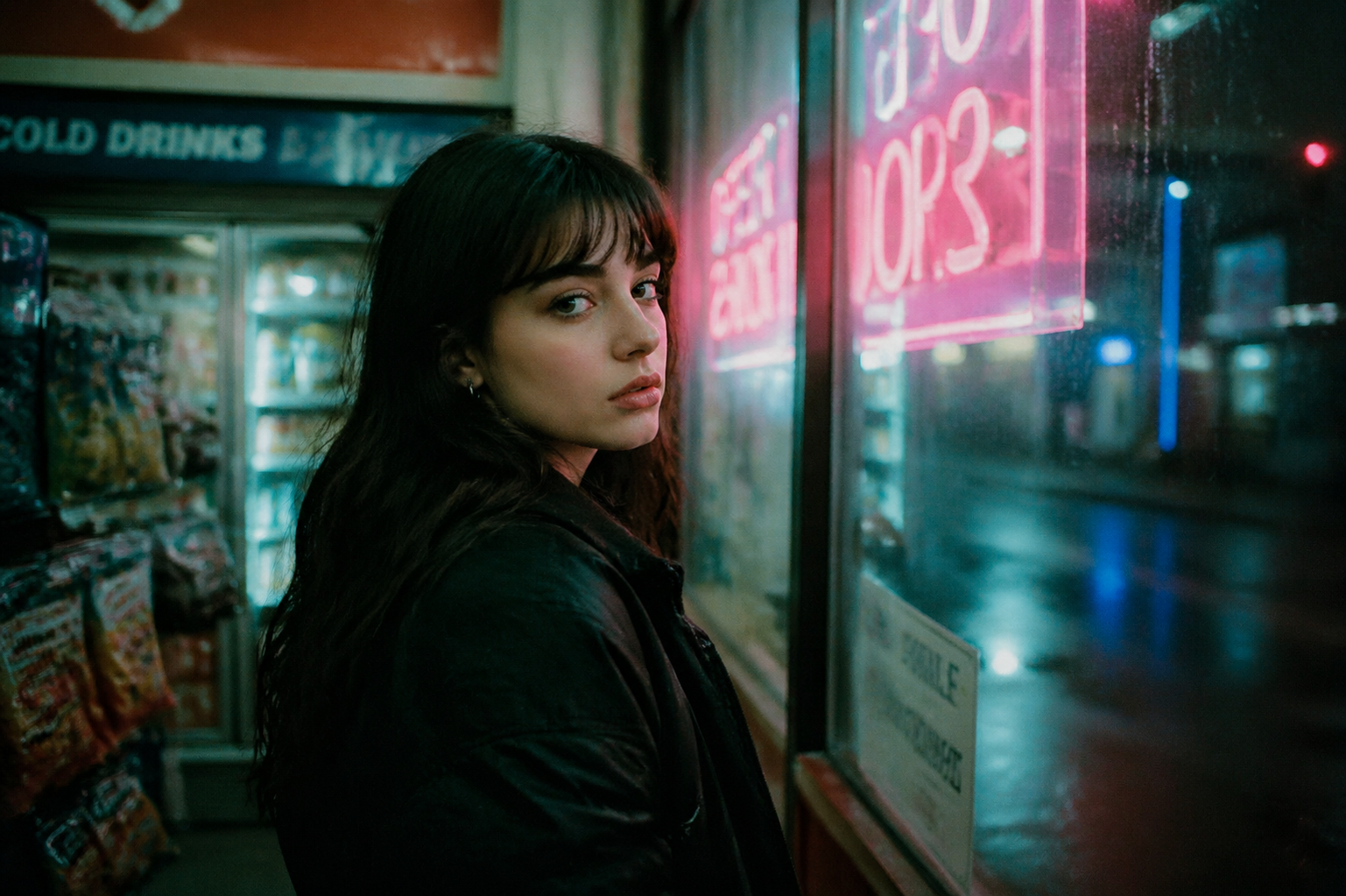
¶ Scenario 1: Cinematic Portrait
You can use cinematic terms in the prompt (35mm film, shallow depth of field, neon lights, etc.) to precisely control the atmosphere and texture.
Python sample code:
import requests

url = "https://api.acedata.cloud/openai/images/generations"

headers = {
    "accept": "application/json",
    "authorization": "Bearer {token}",
    "content-type": "application/json"
}

payload = {
    "model": "gpt-image-2",
    "prompt": "A cinematic portrait of a young woman standing in a convenience store at night, illuminated by soft pink and cyan neon signs through the window. Shot on 35mm film, shallow depth of field, slight grain, melancholic mood.",
    "size": "1024x1536"
}

response = requests.post(url, json=payload, headers=headers)
print(response.text)
Returned result:
{
  "success": true,
  "task_id": "ab58a5df-6f46-4874-bff6-93169e2849a3",
  "created": 1777048800,
  "data": [
    {
      "revised_prompt": "A cinematic portrait of a young woman standing in a convenience store at night, illuminated by soft pink and cyan neon signs through the window. Shot on 35mm film, shallow depth of field, slight grain, melancholic mood.",
      "url": "https://platform.cdn.acedata.cloud/gpt-image/ab58a5df-6f46-4874-bff6-93169e2849a3_0.png"
    }
  ]
}
Generated image:
¶ Scenario 2: Vintage Travel Poster (with Text Rendering)
gpt-image-2 performs stably in typography and font rendering, making it very suitable for generating posters, menus, greeting cards, and other text-inclusive designs.
payload = {
    "model": "gpt-image-2",
    "prompt": "A vintage travel poster of the Amalfi Coast, Italy. Stylized art-deco illustration of cliffside lemon-yellow houses cascading down to a turquoise sea, with a small white sailboat in the harbor. Bold typography at the top reads AMALFI and at the bottom ITALIA 1958. Limited color palette: cream, sea-blue, lemon yellow, terracotta. Slight paper-grain texture.",
    "size": "1024x1536"
}
The url field in the returned result corresponds to the following image:
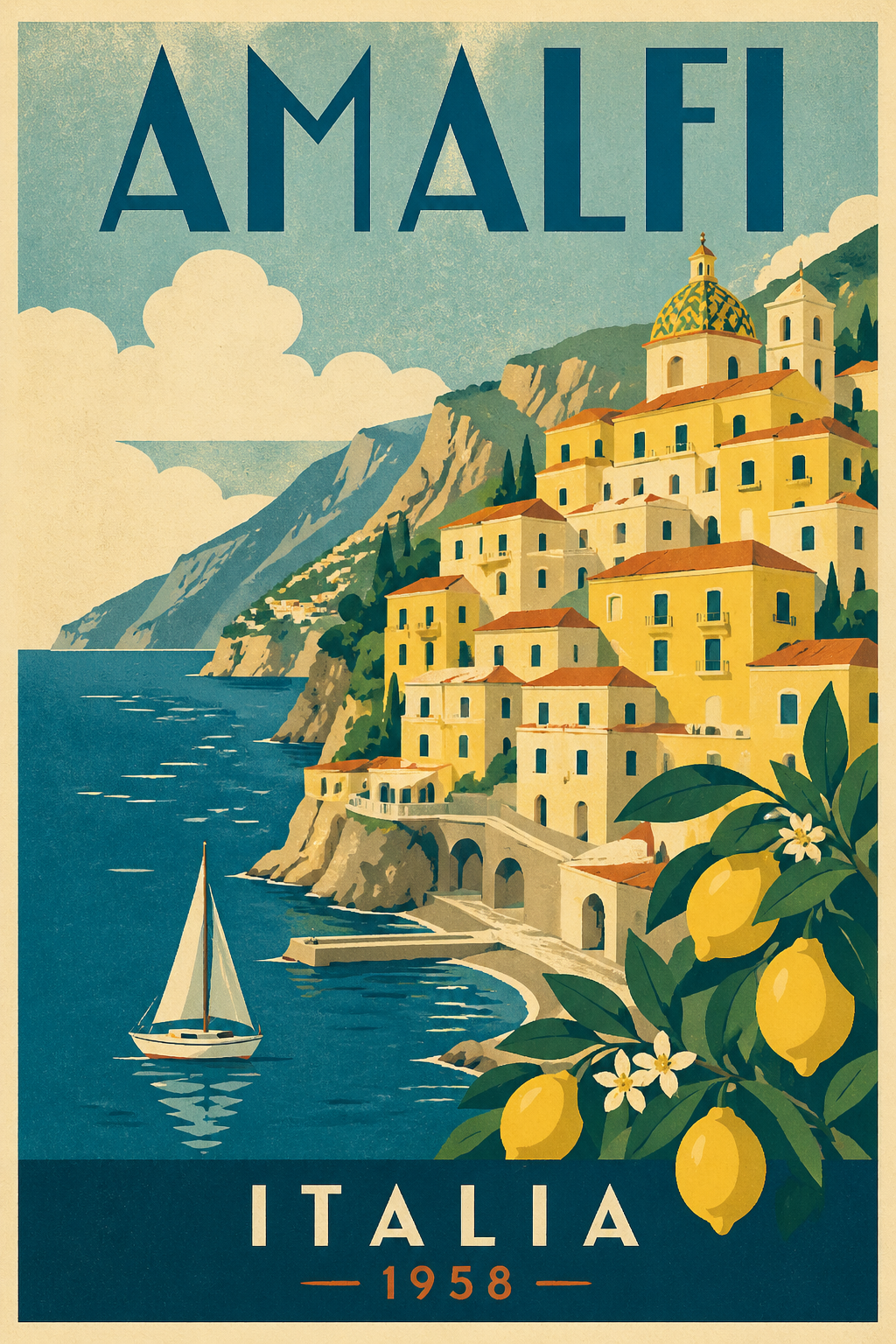
The model accurately reproduces the Art Deco poster visual style, and the title texts AMALFI and ITALIA 1958 are rendered clearly and correctly.
¶ Scenario 3: Complex Composition and Counting
The following prompt tests the model's adherence to structured instructions such as "quantity" and "position".
payload = {
    "model": "gpt-image-2",
    "prompt": "A wooden bookshelf consisting of three shelves: On the top shelf, there should be one book. On the second shelf, there should be three books. On the bottom shelf, there should be seven books. Soft warm lighting, photorealistic, cozy library atmosphere.",
    "size": "1024x1024"
}
Generated image:
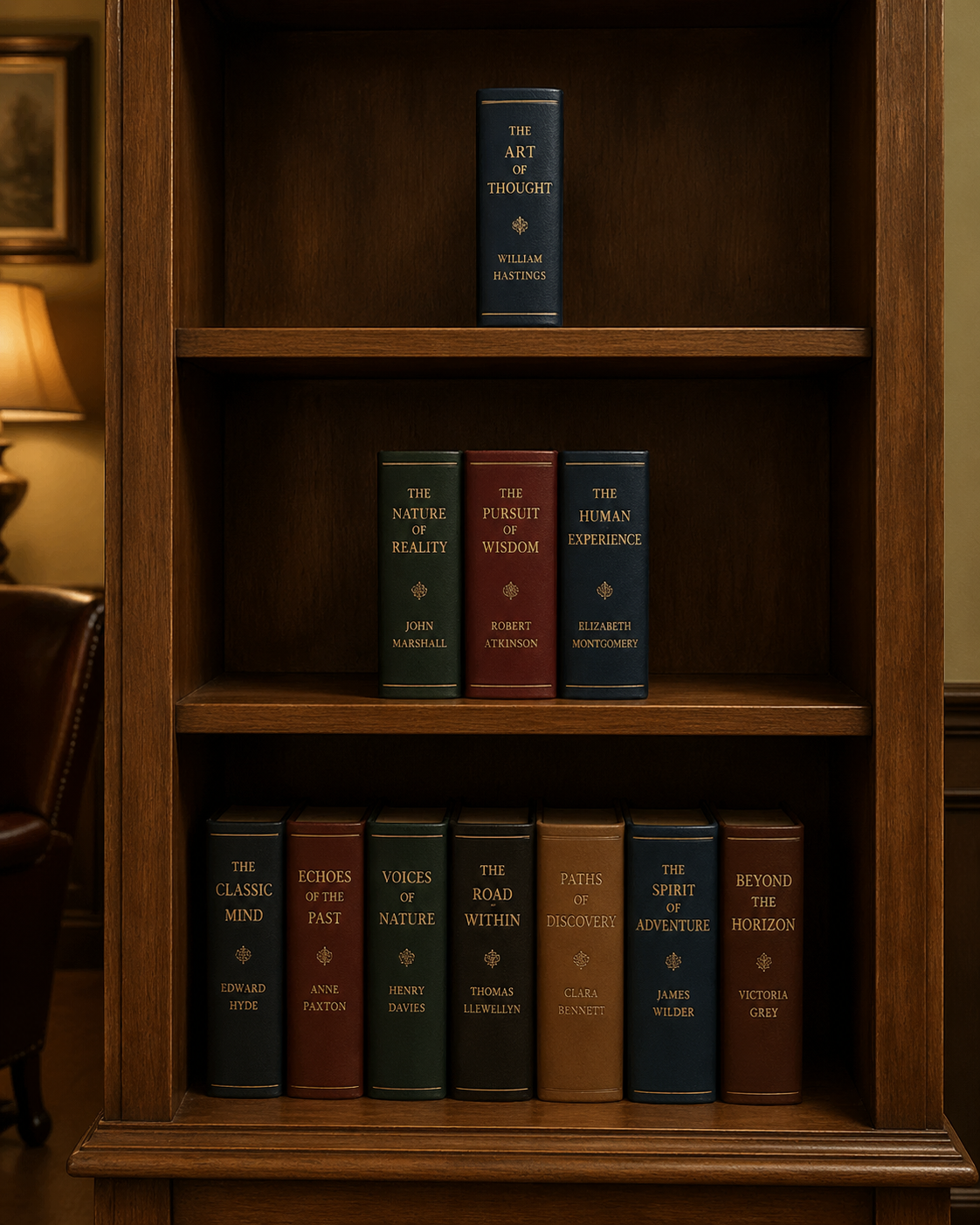
The number of books on the three shelves (1 / 3 / 7) matches the prompt exactly, which was difficult to achieve stably in the dall-e-3 era.
¶ Scenario 4: Illustration Style (Landscape)
By specifying artistic media and mood keywords, the model can be guided to produce stylized illustrations.
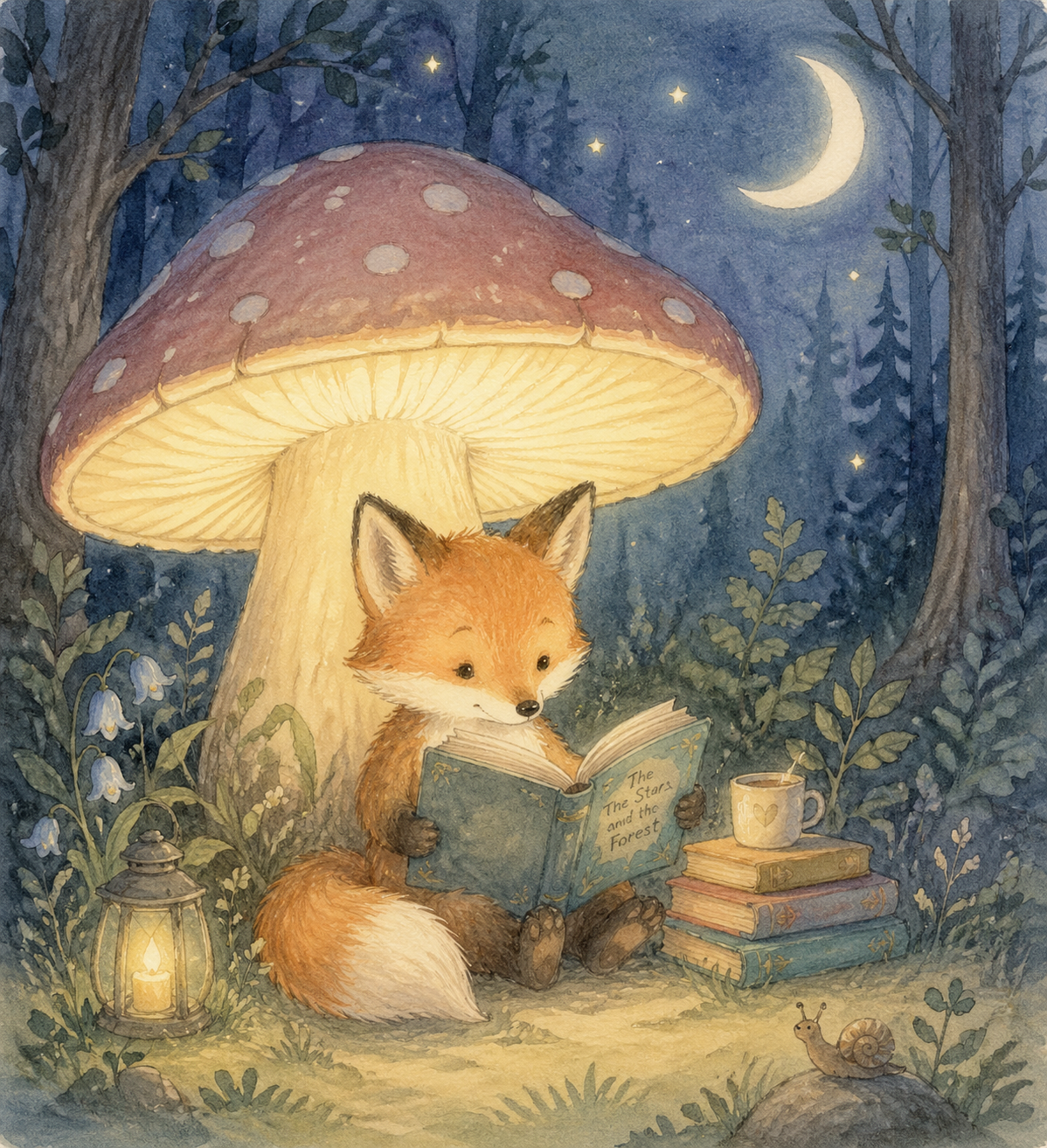
payload = {
    "model": "gpt-image-2",
    "prompt": "A soft, poetic children's book illustration of a small fox reading a book under a glowing mushroom in a moonlit forest. Watercolor and pencil texture, gentle pastel colors, dreamy atmosphere, hand-drawn feel.",
    "size": "1536x1024"
}
Generated landscape illustration:
¶ Asynchronous and Callback
gpt-image-2 single calls usually take 60–90 seconds. If you do not want to keep a long connection, you can use the callback_url asynchronous callback mechanism described later. The calling process is the same as other models.
¶ Nano Banana Series Models
The nano-banana series are image generation models based on Gemini, integrated through the same /openai/images/generations interface without switching endpoints. Just change the model to any of the following:
| Model | Billing (Credits / call) | Suitable Scenario |
|---|---|---|
nano-banana |
0.14 | General image generation, fastest speed, lowest cost |
nano-banana-2 |
0.28 | Significant improvement in quality and detail |
nano-banana-pro |
0.35 | Flagship of the series, best composition, detail, and text |
Important: Supported Parameters
Nano Banana is integrated via an adaptation layer to the OpenAI protocol and supports only the following parameters compared to
gpt-image-*:model,prompt,size.
sizewill be mapped to internalaspect_ratioas per the table below; unlisted sizes default to1:1:
1024x1024/512x512/256x256→1:11792x1024→16:91024x1792→9:16- Does not support
n,quality,style,response_format,background,output_format, etc.; these will be ignored if provided.- Return structure follows OpenAI format (
data[].url), butcreatedis fixed at0, nob64_jsonis returned, andrevised_promptalways equals the originalprompt.
¶ Basic Call
import requests

url = "https://api.acedata.cloud/openai/images/generations"

headers = {
    "accept": "application/json",
    "authorization": "Bearer {token}",
    "content-type": "application/json"
}

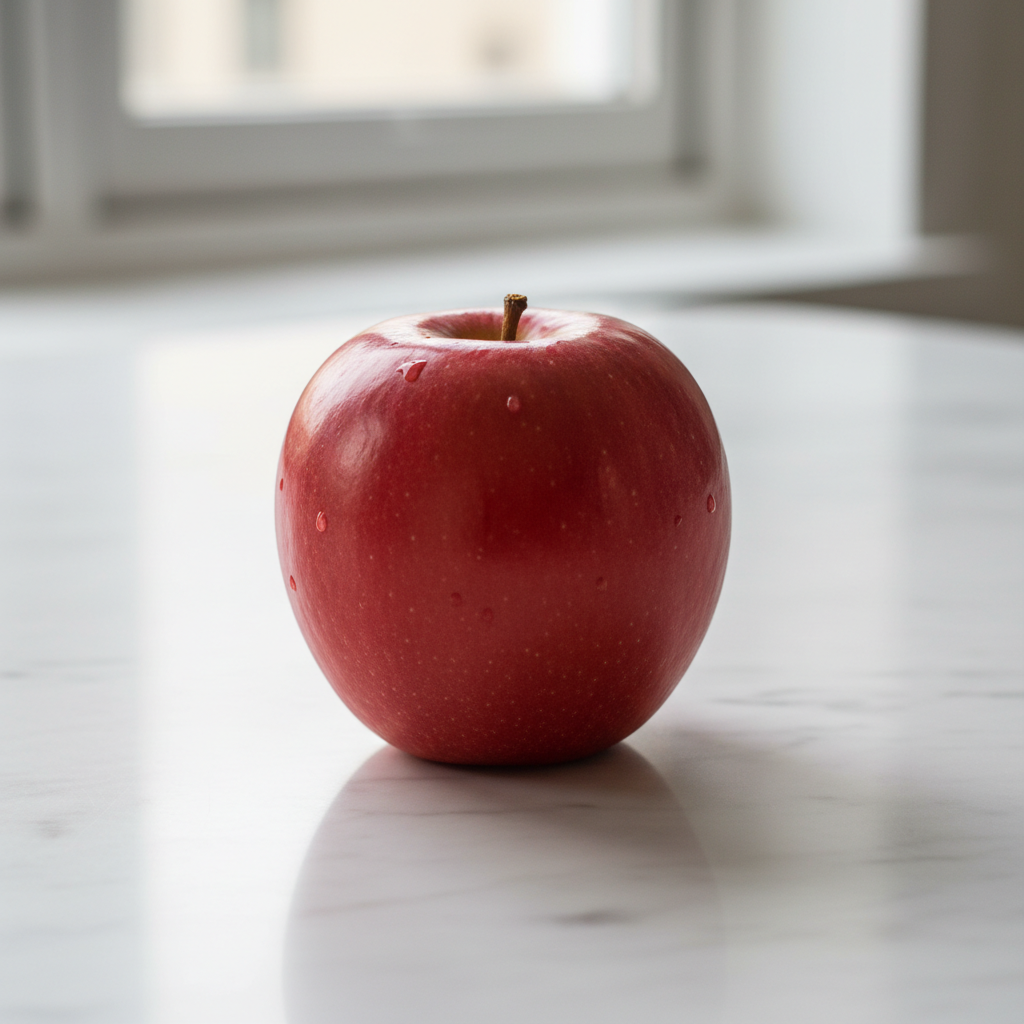
payload = {
    "model": "nano-banana",
    "prompt": "a small red apple on a white table, photoreal",
    "size": "1024x1024"
}

response = requests.post(url, json=payload, headers=headers)
print(response.text)
Returned result:
{
  "created": 0,
  "data": [
    {
      "url": "https://platform.cdn.acedata.cloud/nanobanana/6870b330-65c4-436c-bb80-819fdae7a7a4.png",
      "revised_prompt": "a small red apple on a white table, photoreal"
    }
  ]
}
The generated image can be accessed directly via the returned url:
¶ Upgrade to Flagship Model nano-banana-pro
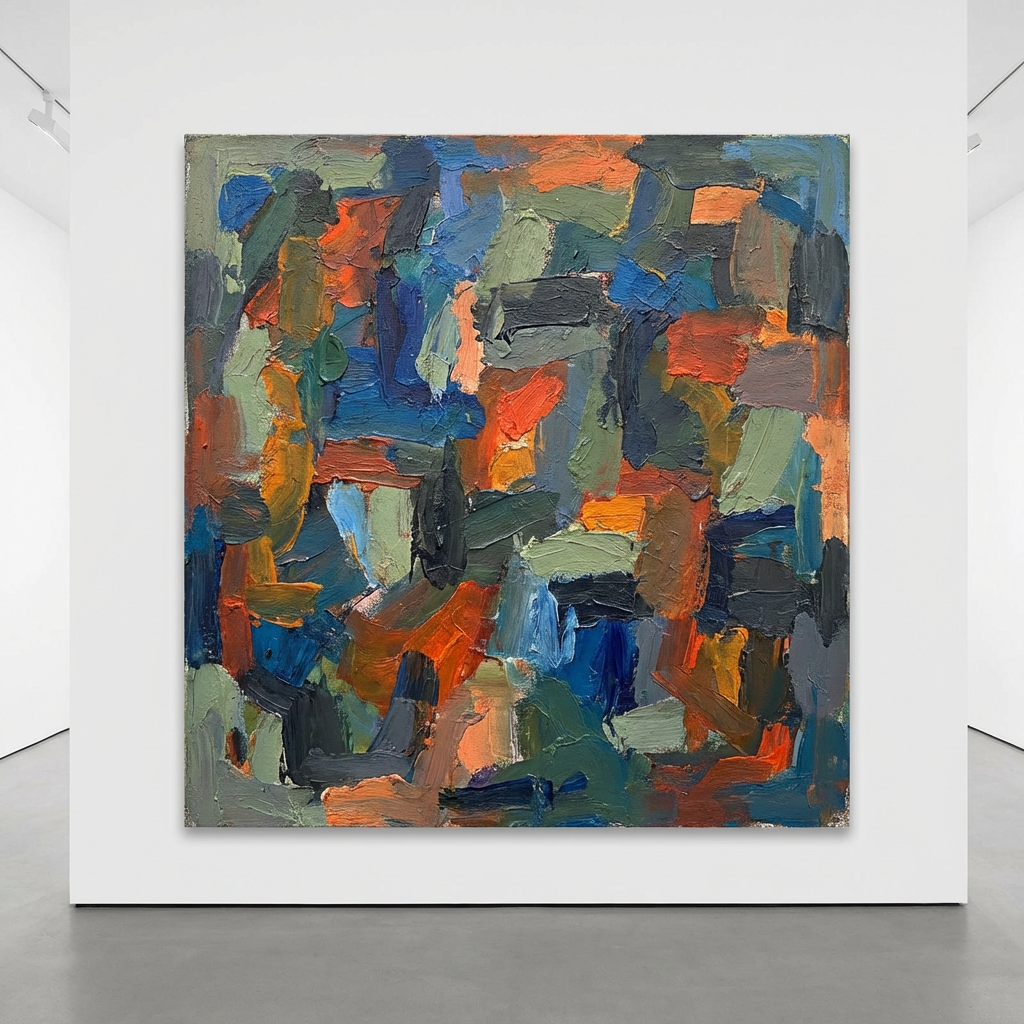
Simply change model to nano-banana-pro, other parameters remain the same:
payload = {
    "model": "nano-banana-pro",
    "prompt": "abstract painting",
    "size": "1024x1024"
}
Example return:
{
  "created": 0,
  "data": [
    {
      "url": "https://platform.cdn.acedata.cloud/nanobanana/6227fcc9-3442-4aa3-a76c-4a4441a99649.png",
      "revised_prompt": "abstract painting"
    }
  ]
}
¶ Asynchronous Callback
The callback_url asynchronous callback mechanism also applies to nano-banana. The calling process is the same as other models; see the Asynchronous Callback section below.
¶ Basic Usage
Next, you can fill in the corresponding content on the interface as shown:
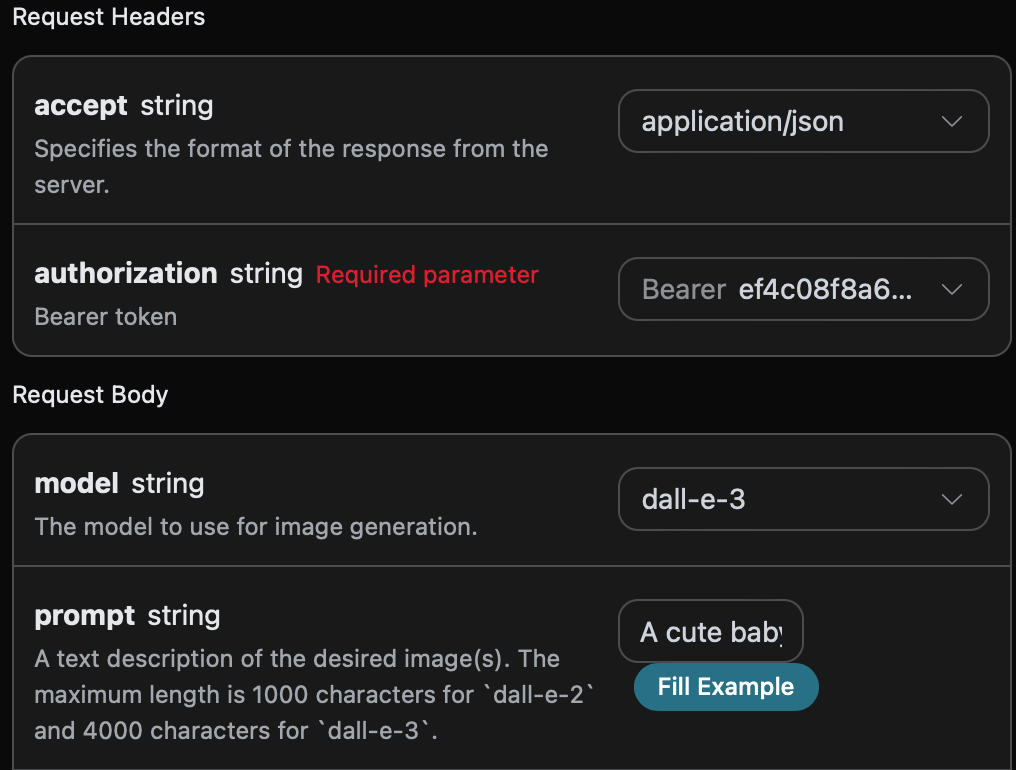
When using this interface for the first time, at least three fields need to be filled: one is authorization, which can be selected directly from the dropdown list; another is model, which is the OpenAI DALL-E official model category you want to use (mainly one model here, details can be found in the provided models); the last is prompt, which is the text prompt for image generation.
You can also notice that the corresponding call code is generated on the right side. You can copy the code to run directly or click the "Try" button to test.
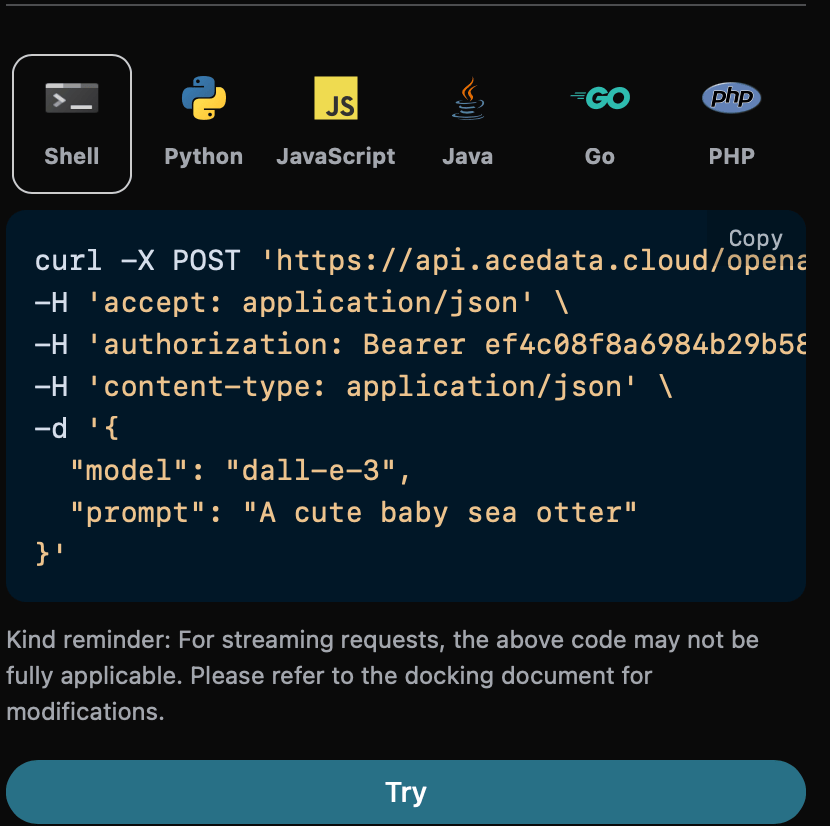
Python sample call code:
import requests

url = "https://api.acedata.cloud/openai/images/generations"

headers = {
    "accept": "application/json",
    "authorization": "Bearer {token}",
    "content-type": "application/json"
}

payload = {
    "model": "dall-e-3",
    "prompt": "A cute baby sea otter"
}

response = requests.post(url, json=payload, headers=headers)
print(response.text)
After calling, the returned result is as follows:
{
  "created": 1721626477,
  "data": [
    {
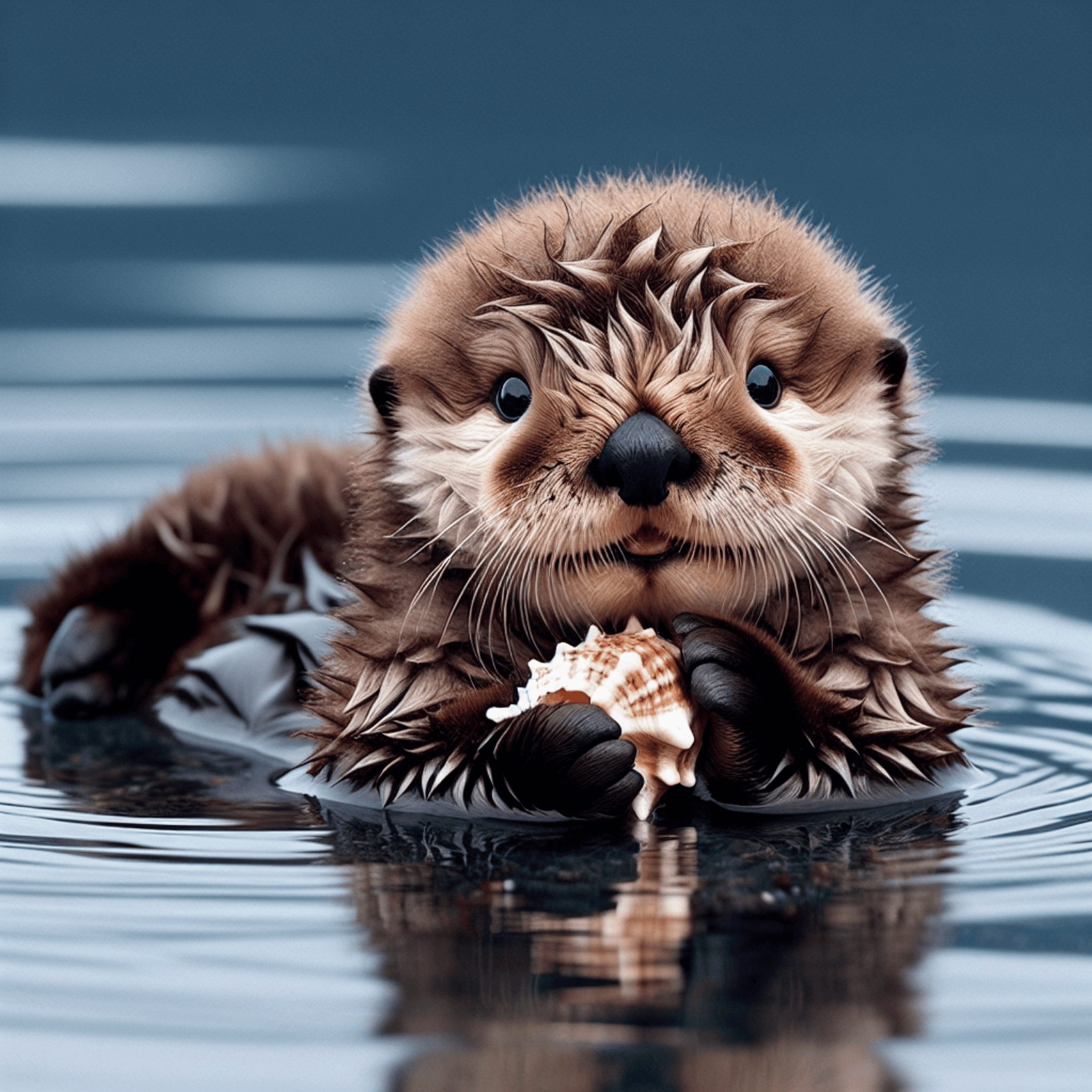
      "revised_prompt": "A delightful image showcasing a young sea otter, who is born brown, with wide charming eyes. It is delightfully lying on its back, paddling in the calm sea waters. Its dense, velvety fur appears wet and shimmering, capturing the essence of its habitat. The small creature curiously plays with a sea shell with its small paws, looking absolutely innocent and charming in its natural environment.",
      "url": "https://dalleprodsec.blob.core.windows.net/private/images/5d98aa7c-80c6-4523-b571-fc606ad455b9/generated_00.png?se=2024-07-23T05%3A34%3A48Z&sig=GAz%2Bi3%2BkHOQwAMhxcv22tBM%2FaexrxPgT9V0DbNrL4ik%3D&ske=2024-07-23T08%3A41%3A10Z&skoid=e52d5ed7-0657-4f62-bc12-7e5dbb260a96&sks=b&skt=2024-07-16T08%3A41%3A10Z&sktid=33e01921-4d64-4f8c-a055-5bdaffd5e33d&skv=2020-10-02&sp=r&spr=https&sr=b&sv=2020-10-02"
    }
  ]
}
Returned results include multiple fields:
created: the ID for this image generation, uniquely identifying the task.data: contains the image generation result information.
The data contains detailed information about the generated image, where the url is the link to the generated image, as shown below.
¶ Image Quality Parameter quality
Next, we introduce how to set detailed parameters for image generation results. The image quality parameter quality has two options: the first is standard, which generates standard images; the other is hd, which creates images with finer details and greater consistency.
Below is the setting for quality as standard:
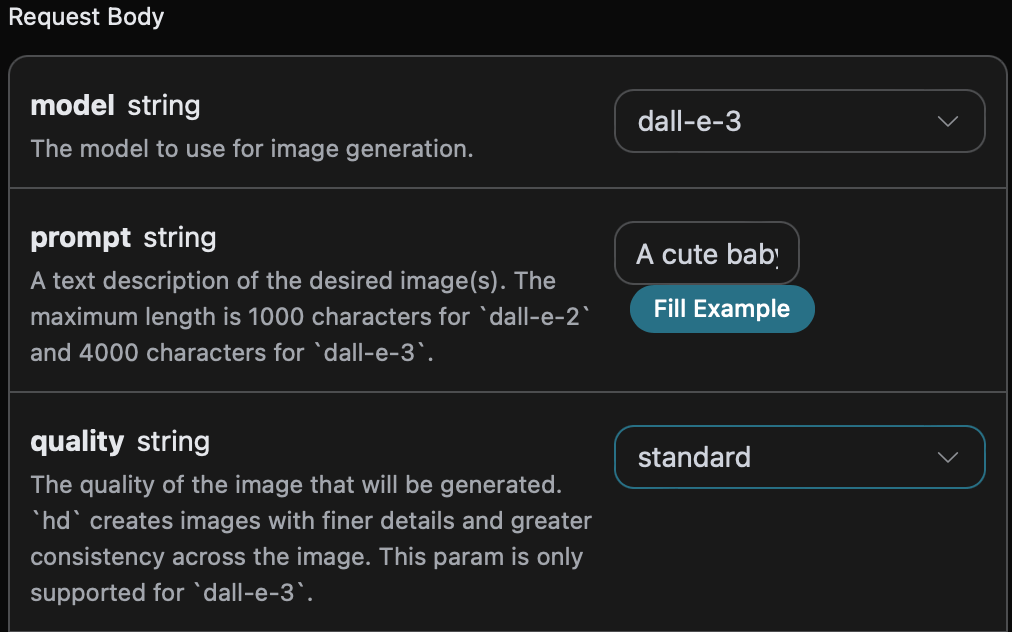
You can also notice the corresponding call code generated on the right side, which you can copy to run or click "Try" to test.
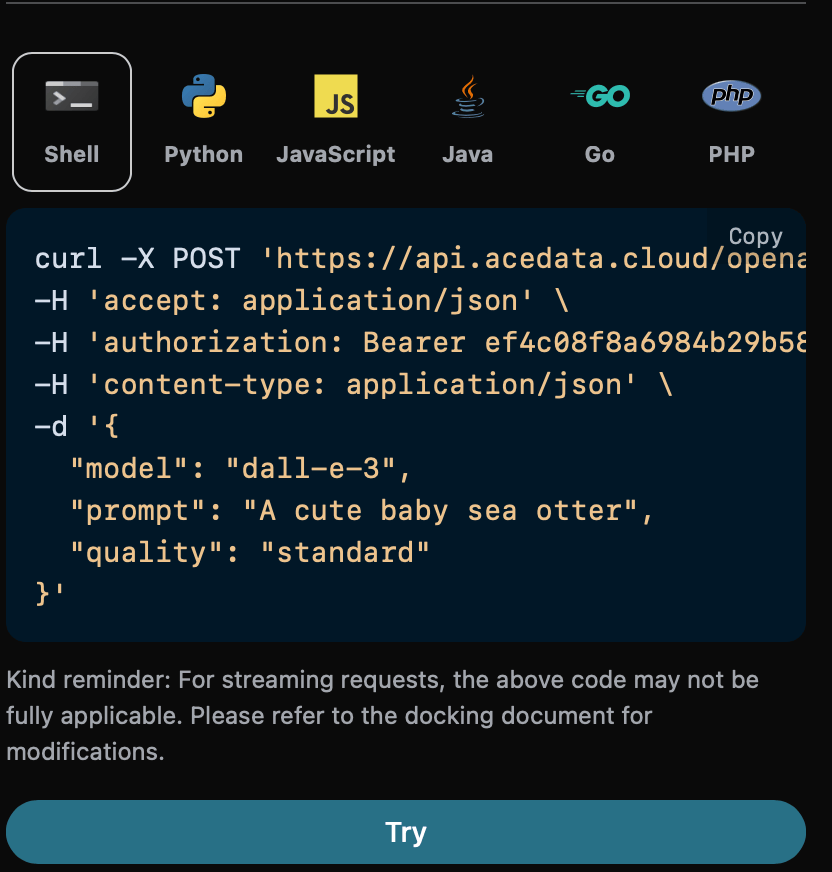
Python sample call code:
import requests

url = "https://api.acedata.cloud/openai/images/generations"

headers = {
    "accept": "application/json",
    "authorization": "Bearer {token}",
    "content-type": "application/json"
}

payload = {
    "model": "dall-e-3",
    "prompt": "A cute baby sea otter",
    "quality": "standard"
}

response = requests.post(url, json=payload, headers=headers)
print(response.text)
Returned result:
{
  "created": 1721636023,
  "data": [
    {
      "revised_prompt": "A cute baby sea otter is lying playfully on its back in the water, with its fur looking glossy and soft. One of its tiny paws is reaching out curiously, and it has an expression of pure joy and warmth on its face as it looks up to the sky. Its body is surrounded by bubbles from its playful twirling in the water. A gentle breeze is playing with its fur making it look more charming. The scene portrays the tranquility and charm of marine life.",
      "url": "https://dalleprodsec.blob.core.windows.net/private/images/a93ee5e7-3abd-4923-8d79-dc9ef126da46/generated_00.png?se=2024-07-23T08%3A13%3A55Z&sig=wTXGYvUOwUIkaB2CxjK9ww%2FHjS8OwYUWcYInXYKwcAM%3D&ske=2024-07-23T11%3A32%3A05Z&skoid=e52d5ed7-0657-4f62-bc12-7e5dbb260a96&sks=b&skt=2024-07-16T11%3A32%3A05Z&sktid=33e01921-4d64-4f8c-a055-5bdaffd5e33d&skv=2020-10-02&sp=r&spr=https&sr=b&sv=2020-10-02"
    }
  ]
}
The returned result is consistent with basic usage. The image generated with quality set to standard is shown below:
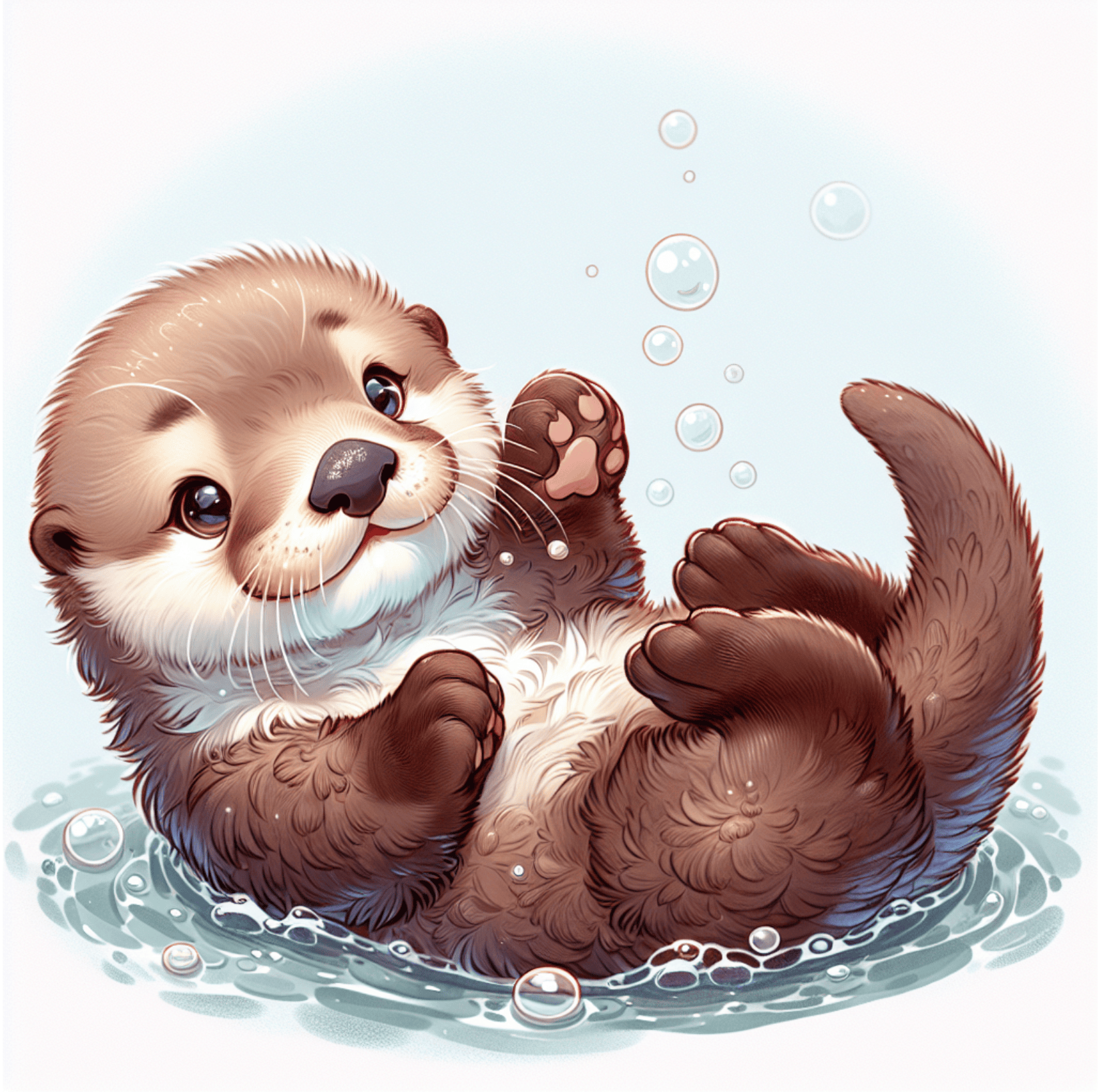
Performing the same operation but setting quality to hd yields the following image:
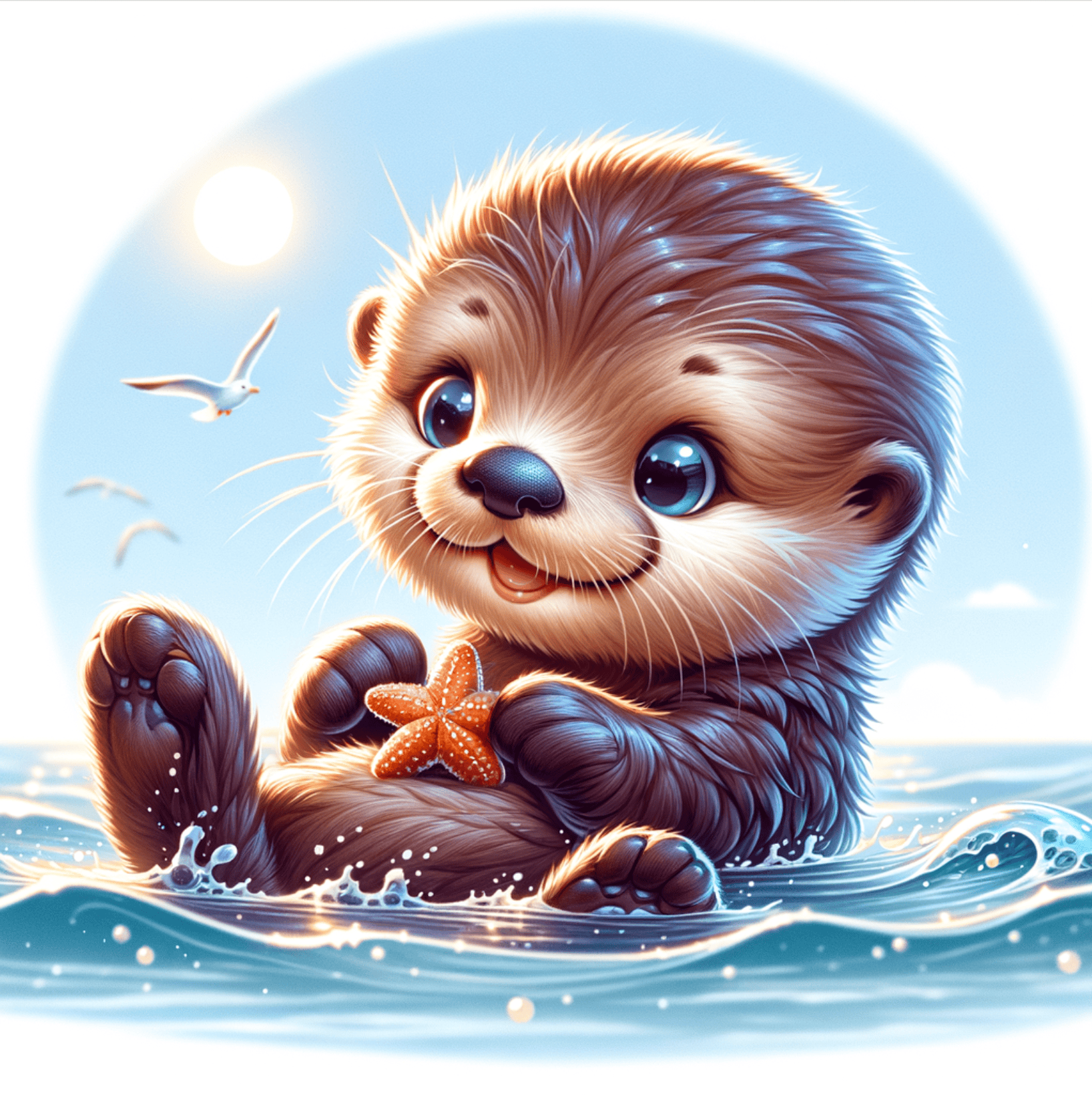
You can see that hd produces images with finer details and greater consistency than standard.
¶ Image Size Parameter size
You can also set the size of the generated image.
Below is the setting for image size as 1024x1024:
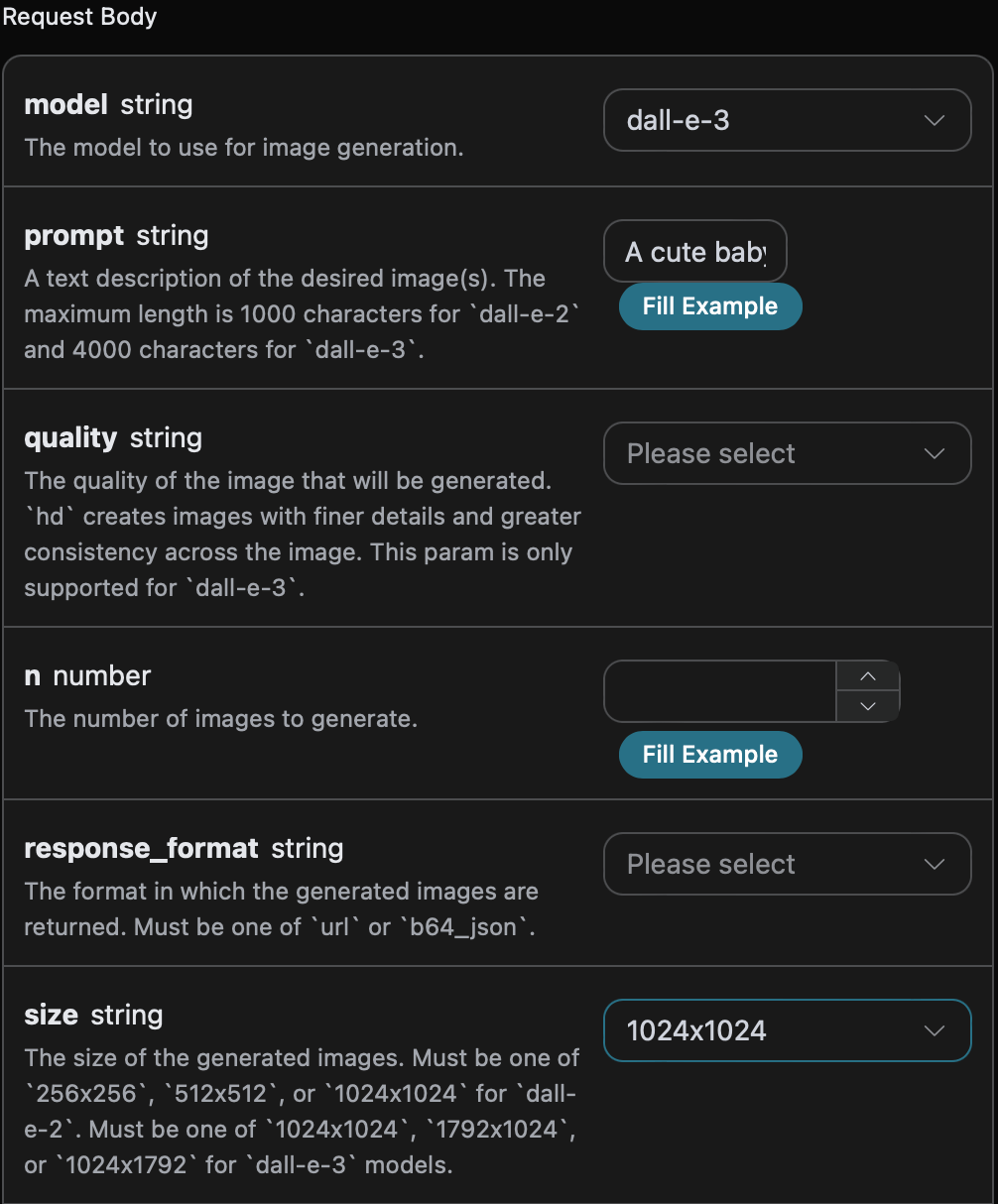
You can also notice the corresponding call code generated on the right side, which you can copy to run or click "Try" to test.
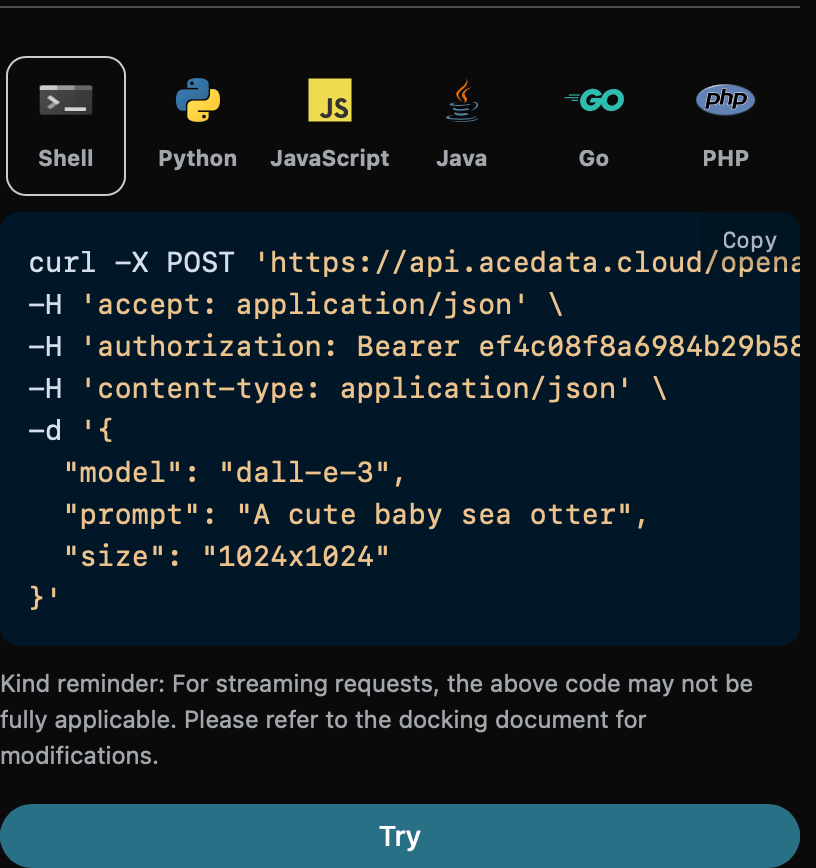
Python sample call code:
import requests

url = "https://api.acedata.cloud/openai/images/generations"

headers = {
    "accept": "application/json",
    "authorization": "Bearer {token}",
    "content-type": "application/json"
}

payload = {
    "model": "dall-e-3",
    "prompt": "A cute baby sea otter",
    "size": "1024x1024"
}

response = requests.post(url, json=payload, headers=headers)
print(response.text)
Returned result:
{
  "created": 1721636652,
  "data": [
    {
      "revised_prompt": "A delightful depiction of a baby sea otter. The small mammal is captured in its natural habitat in the ocean, floating on its back. It has thick brown fur that is sleek and wet from the sea water. Its eyes are closed as if it is enjoying a moment of deep relaxation. The water around it is calm, reflecting the peacefulness of the scene. The background should hint at a diverse marine ecosystem, with visible strands of kelp floating on the surface, suggesting the baby otter's preferred environment.",
      "url": "https://dalleprodsec.blob.core.windows.net/private/images/9d625ac6-fd2b-42a9-84a6-8c99eb357ccf/generated_00.png?se=2024-07-23T08%3A24%3A24Z&sig=AXtYXowEakGxfRp8LhC2DwqL%2F07LhEDW40oCP%2BdTO8s%3D&ske=2024-07-23T18%3A00%3A45Z&skoid=e52d5ed7-0657-4f62-bc12-7e5dbb260a96&sks=b&skt=2024-07-16T18%3A00%3A45Z&sktid=33e01921-4d64-4f8c-a055-5bdaffd5e33d&skv=2020-10-02&sp=r&spr=https&sr=b&sv=2020-10-02"
    }
  ]
}
The returned result is consistent with basic usage. The generated image with size 1024x1024 is shown below:
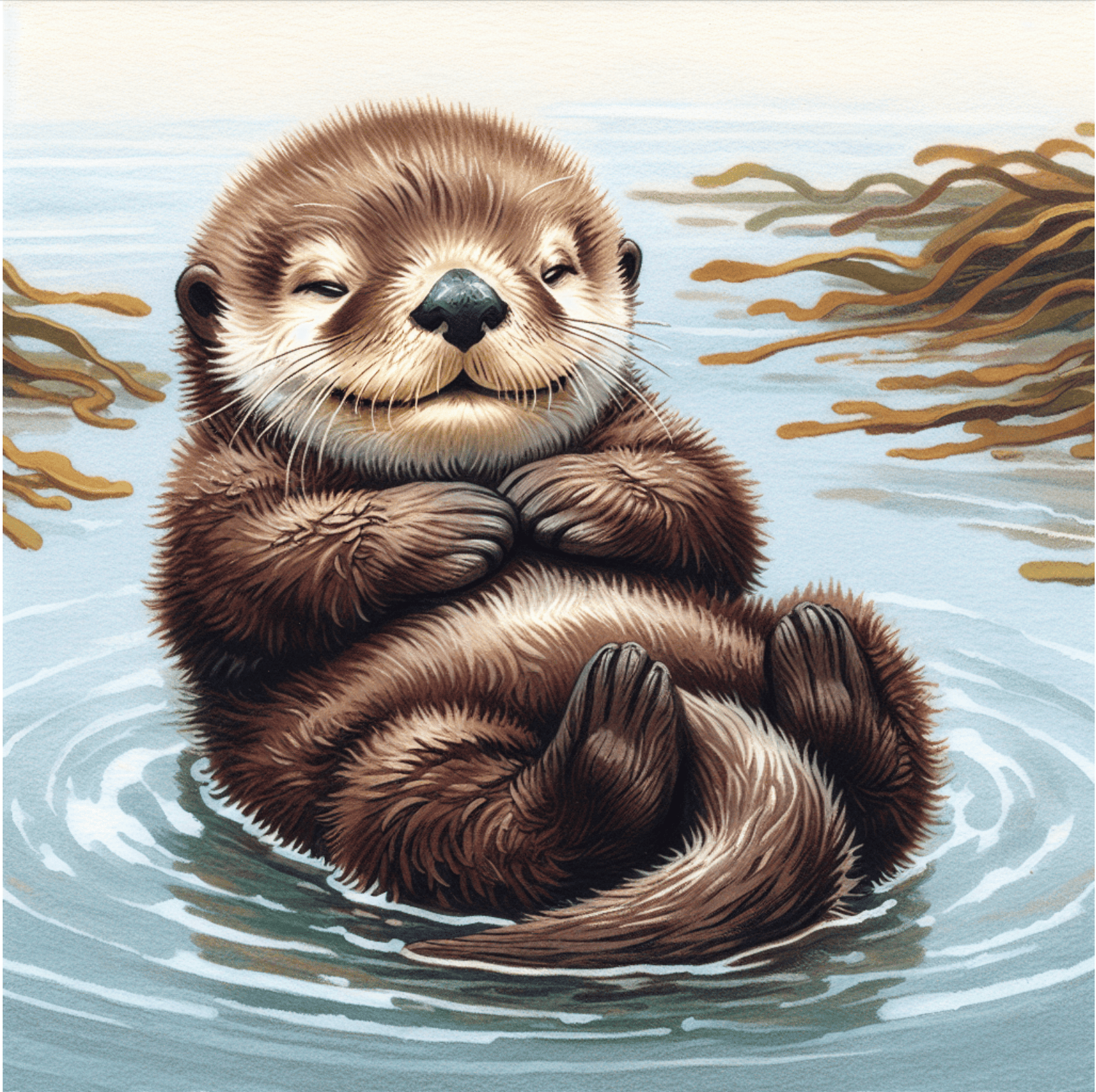
Performing the same operation but setting the size to 1792x1024 yields the following image:
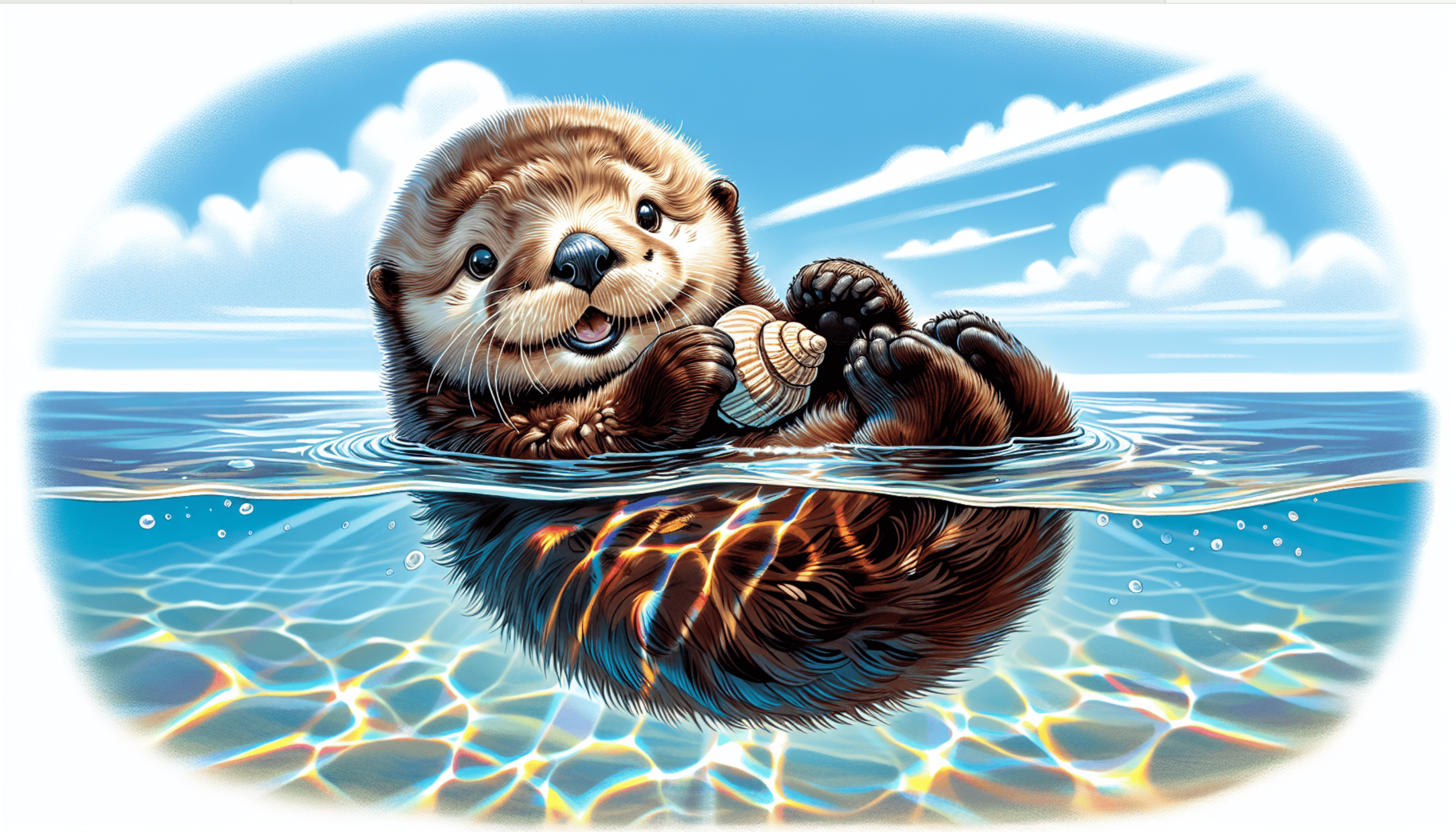
You can see the size difference clearly. More sizes can be set; please refer to our official documentation for details.
¶ Image Style Parameter style
The image style parameter style has two options: vivid means the generated image is more vivid, and natural means the generated image is more natural.
Below is the setting for style as vivid:
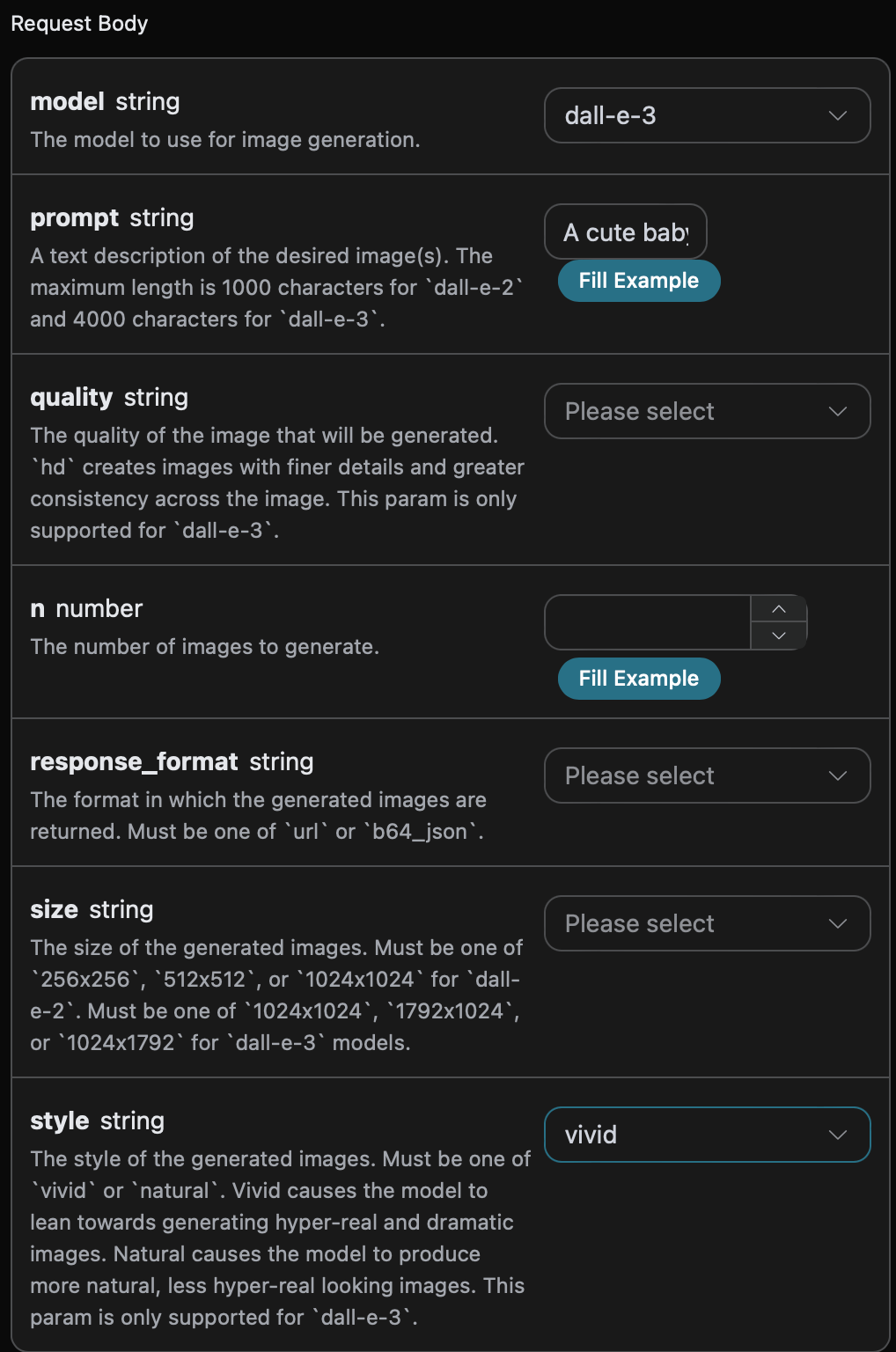
You can also notice the corresponding call code generated on the right side, which you can copy to run or click "Try" to test.
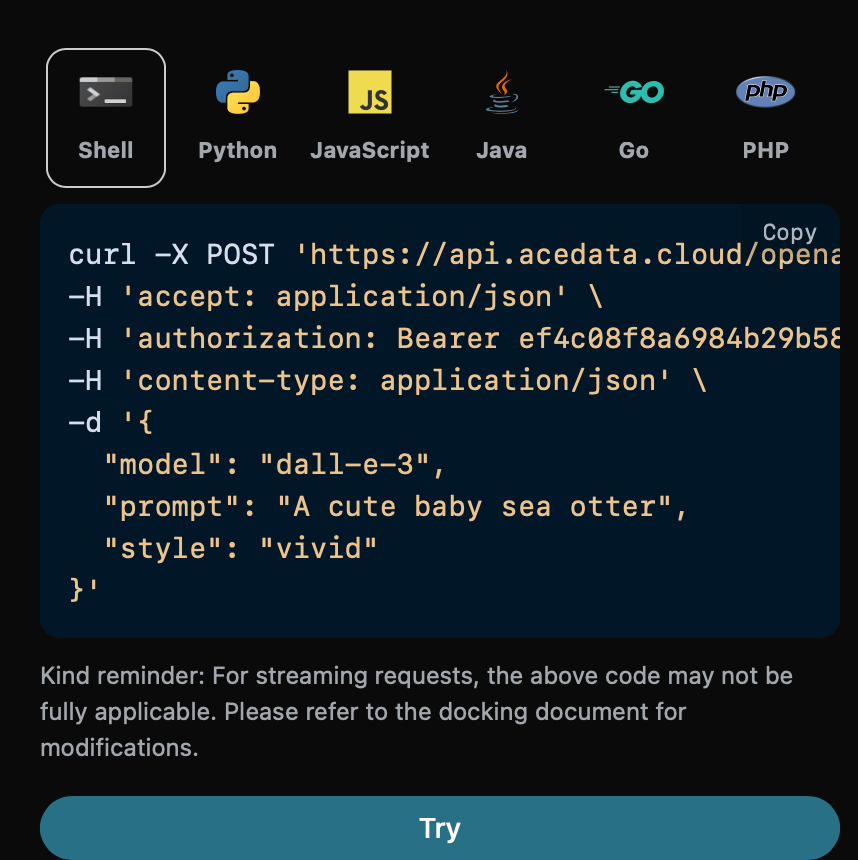
Python sample call code:
import requests

url = "https://api.acedata.cloud/openai/images/generations"

headers = {
    "accept": "application/json",
    "authorization": "Bearer {token}",
    "content-type": "application/json"
}

payload = {
    "model": "dall-e-3",
    "prompt": "A cute baby sea otter",
    "style": "vivid"
}

response = requests.post(url, json=payload, headers=headers)
print(response.text)
Returned result:
{
  "created": 1721637086,
  "data": [
    {
      "revised_prompt": "A baby sea otter with soft, shiny fur and sparkling eyes floating playfully on calm ocean waters. This adorable creature is trippingly frolicking amidst small, gentle waves under a bright, clear, sunny sky. The tranquility of the sea contrasts subtly with the delightful energy of this young otter. The critter gamely clings to a tiny piece of driftwood, its small paws adorably enveloping the floating object.",
      "url": "https://dalleprodsec.blob.core.windows.net/private/images/6e48f701-7fd3-4356-839e-a2f6f0fe82d9/generated_00.png?se=2024-07-23T08%3A31%3A37Z&sig=4percxqTbUR1j3BQmkhvj%2FAhHzInKI%2FqiTo1MP69coI%3D&ske=2024-07-27T10%3A39%3A55Z&skoid=e52d5ed7-0657-4f62-bc12-7e5dbb260a96&sks=b&skt=2024-07-20T10%3A39%3A55Z&sktid=33e01921-4d64-4f8c-a055-5bdaffd5e33d&skv=2020-10-02&sp=r&spr=https&sr=b&sv=2020-10-02"
    }
  ]
}
The returned result is consistent with basic usage. The image generated with style set to vivid is shown below:
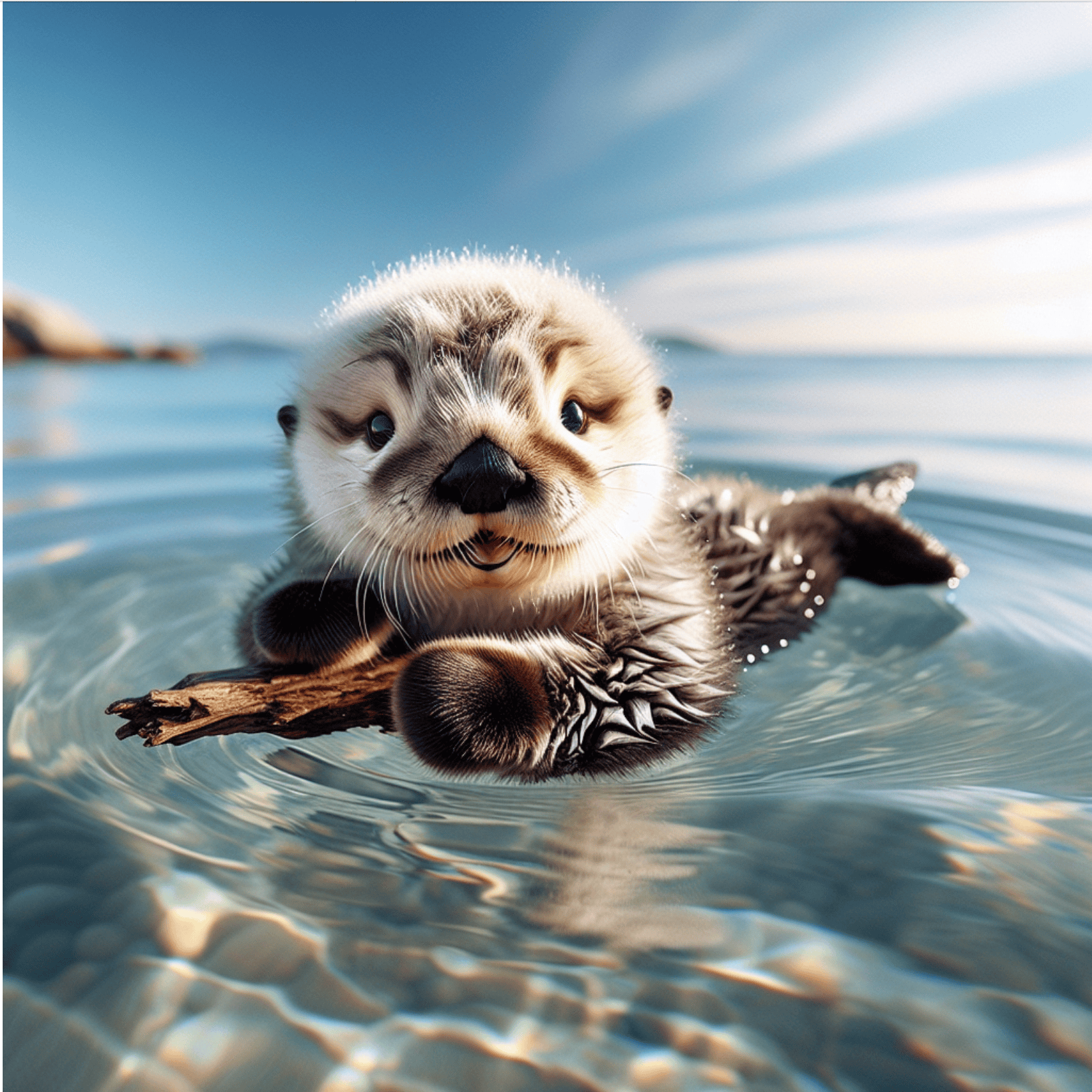
Performing the same operation but setting style to natural yields the following image:
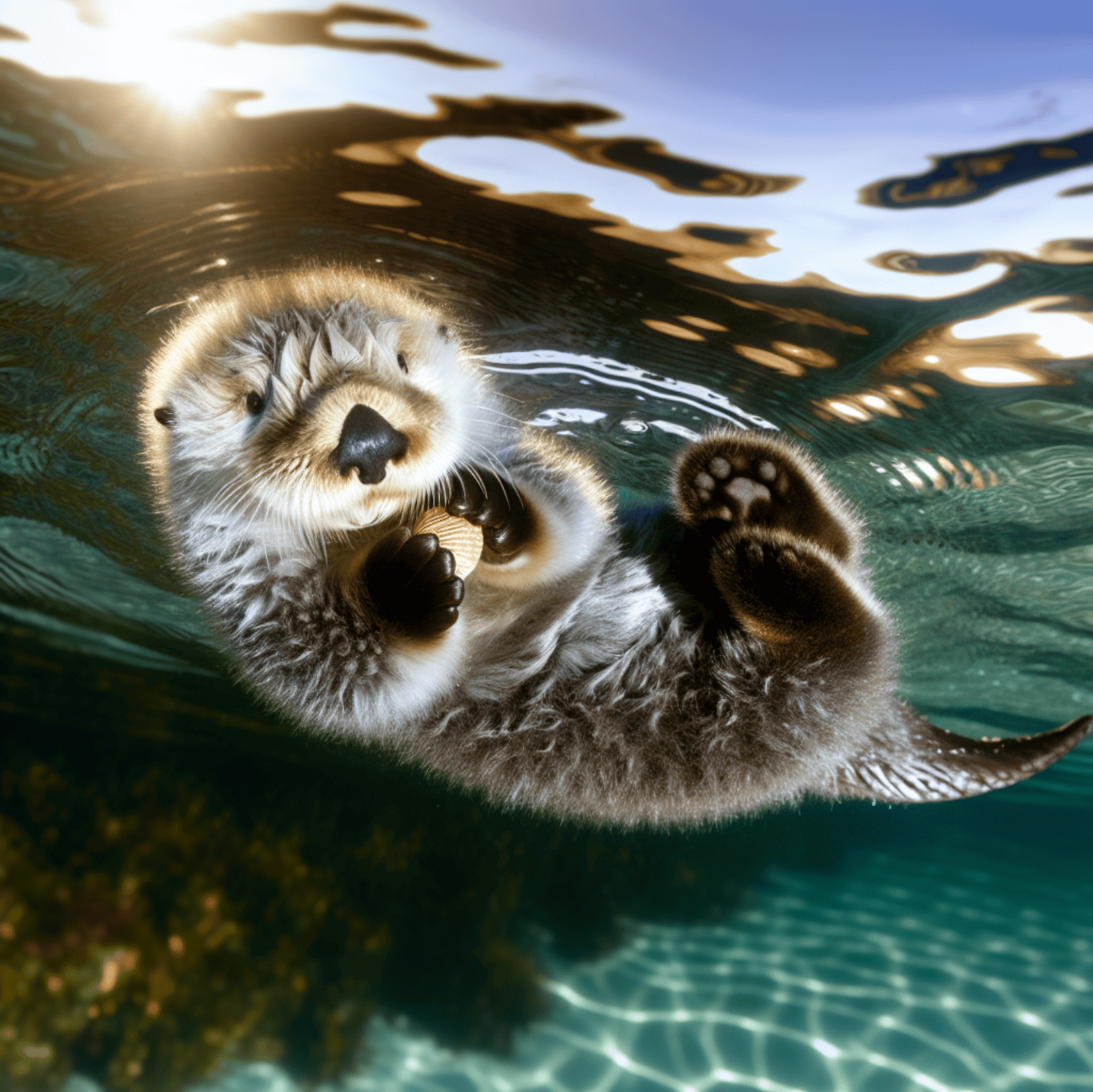
You can see that vivid produces more vivid and lifelike images than natural.
¶ Image Link Format Parameter response_format
The last parameter is the image link format response_format, which has two options: b64_json encodes the image link in Base64, and url is a normal image link that can be viewed directly.
Below is the setting for response_format as url:
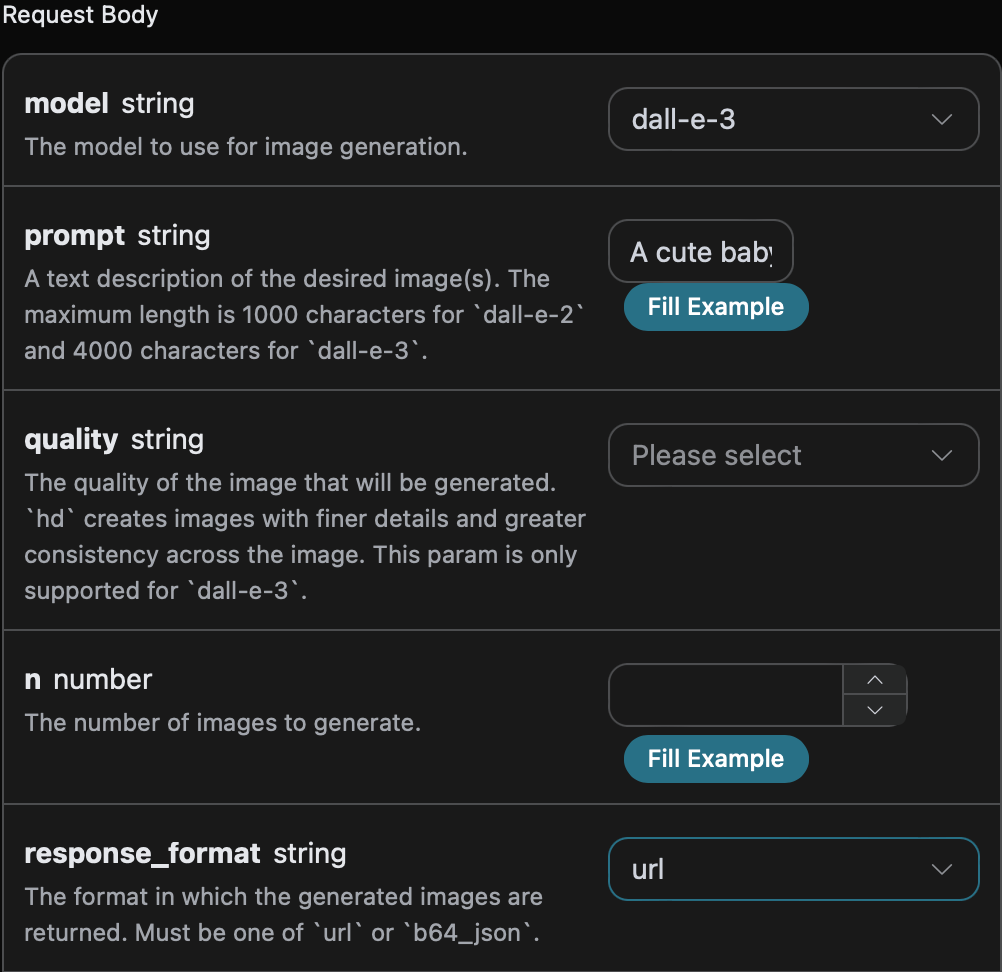
You can also notice the corresponding call code generated on the right side, which you can copy to run or click "Try" to test.
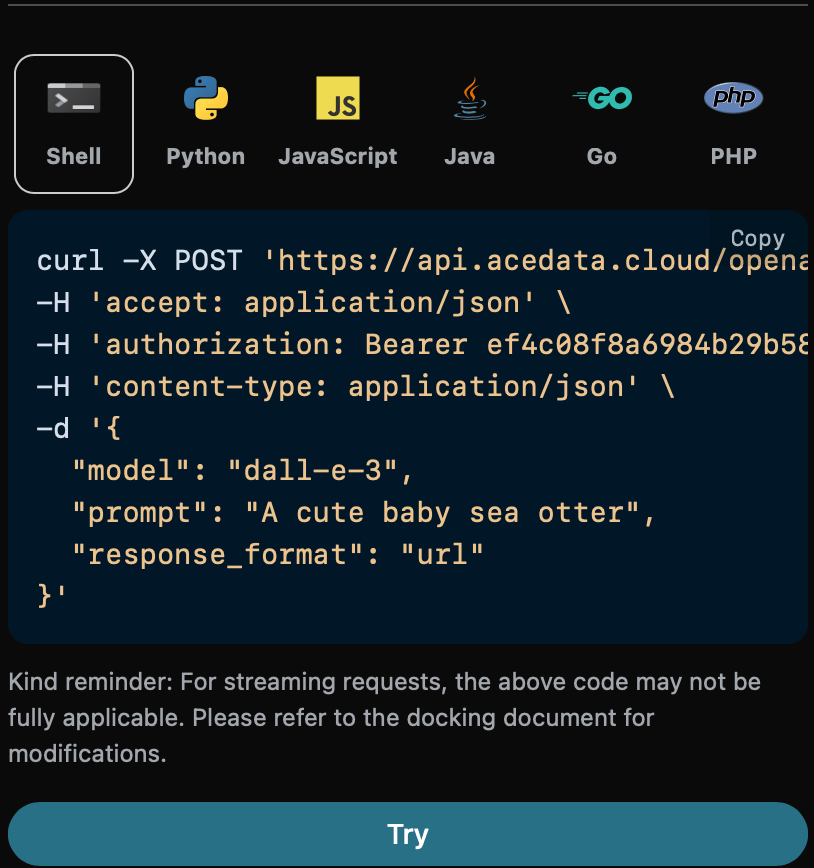
Python sample call code:
import requests

url = "https://api.acedata.cloud/openai/images/generations"

headers = {
    "accept": "application/json",
    "authorization": "Bearer {token}",
    "content-type": "application/json"
}

payload = {
    "model": "dall-e-3",
    "prompt": "A cute baby sea otter",
    "response_format": "url"
}

response = requests.post(url, json=payload, headers=headers)
print(response.text)
Returned result:
{
  "created": 1721637575,
  "data": [
    {
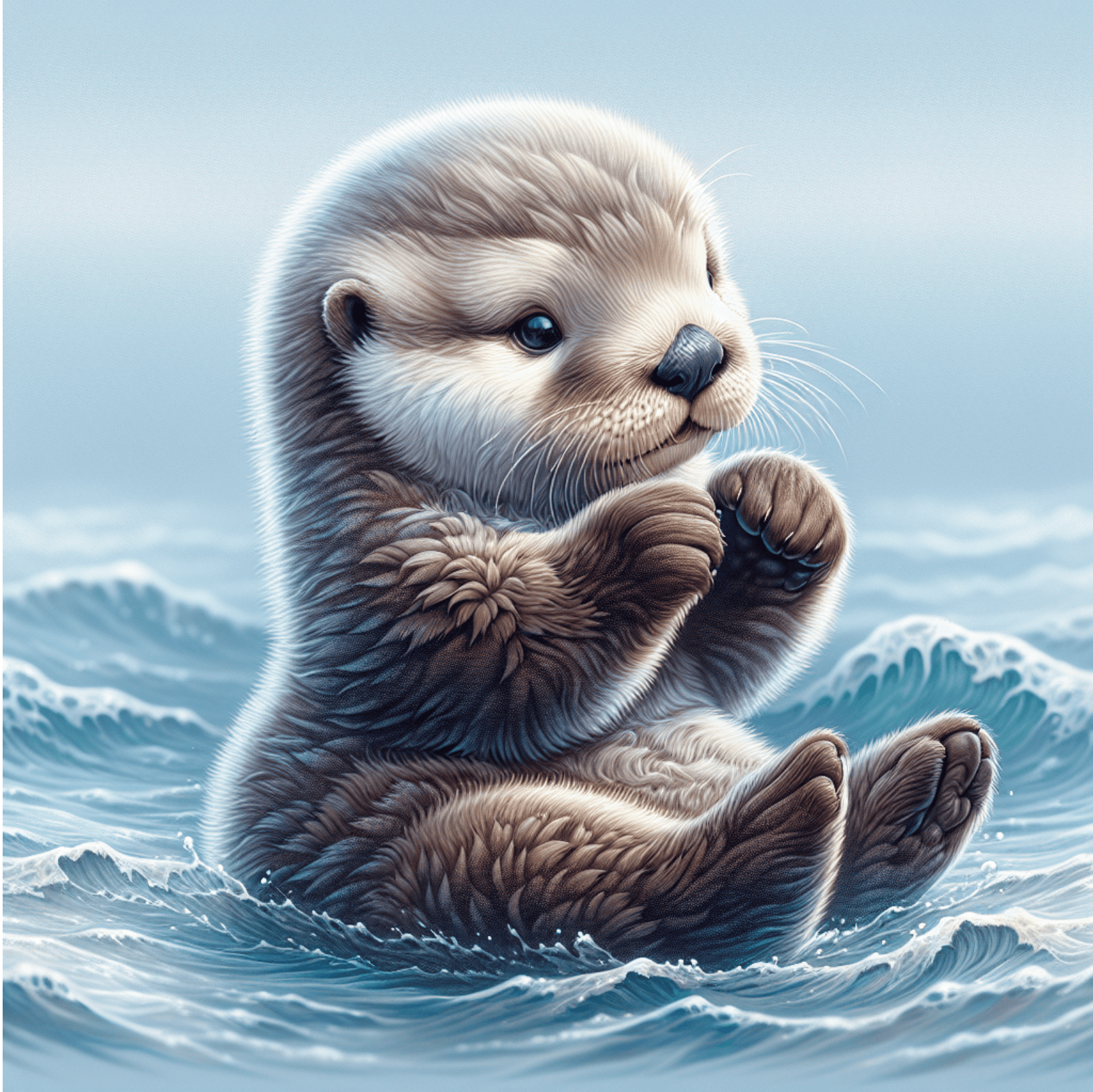
      "revised_prompt": "A charming depiction of a baby sea otter. The otter is seen resting serenely on its back amidst the gentle, blue ocean waves. The baby otter's fur is an endearing mix of soft greyish brown shades, glinting subtly in the muted sunlight. Its small paws are touching, lifted slightly towards the sky as if playing with an unseen object. Its round, expressive eyes are wide in curiosity, sparking with life and innocence. Use a realistic style to evoke the otter's natural habitat and its adorably fluffy exterior.",
      "url": "https://dalleprodsec.blob.core.windows.net/private/images/87792c5f-8b6d-412e-81dd-f1a1baa19bd2/generated_00.png?se=2024-07-23T08%3A39%3A47Z&sig=zzRAn30TqIKHdLVqZPUUuSJdjCYpoJdaGU6BeoA76Jo%3D&ske=2024-07-23T13%3A32%3A13Z&skoid=e52d5ed7-0657-4f62-bc12-7e5dbb260a96&sks=b&skt=2024-07-16T13%3A32%3A13Z&sktid=33e01921-4d64-4f8c-a055-5bdaffd5e33d&skv=2020-10-02&sp=r&spr=https&sr=b&sv=2020-10-02"
    }
  ]
}
The returned result is consistent with basic usage. The image link with response_format set to url is Image URL, which can be accessed directly. The image is shown below:

Performing the same operation but setting response_format to b64_json returns the Base64 encoded image link, as shown below:
{
  "created": 1721638071,
  "data": [
    {
      "b64_json": "iVBORw0..............v//AQEAAP4AAAD+AAADAQAAAwEEA/4D//8Q/Pbw64mKbVTFoQAAAABJRU5ErkJggg==",
      "revised_prompt": "A charming image of a young baby sea otter. The otter is gently floating on a calm blue sea, basking in the warm, golden rays of sunlight streaming down from a clear sky above. The otter's fur is a rich chocolate brown, and it looks incredibly soft and fluffy. The otter's eyes are bright and expressive, filled with childlike curiosity and joy. It has small, pricked ears and a button-like nose which adds to its overall cuteness. In the sea around it, twinkling droplets of water can be seen, pepped up by the sunlight, the sight is certainly a delightful one."
    }
  ]
}
¶ Asynchronous Callback
Because the OpenAI Images Generations API may take relatively long to generate images, if the API does not respond for a long time, the HTTP request will keep the connection open, causing additional system resource consumption. Therefore, this API also supports asynchronous callbacks.
The overall process is: when the client initiates a request, it additionally specifies a callback_url field. After the client sends the API request, the API immediately returns a result containing a task_id field representing the current task ID. When the task is completed, the generated image result will be sent to the client’s specified callback_url via POST JSON, including the task_id field, so the task result can be associated by ID.
Below is an example to understand the specific operation.
First, the webhook callback is a service that can receive HTTP requests. Developers should replace it with their own HTTP server URL. For demonstration, a public webhook sample site https://webhook.site/ is used. Open the site to get a webhook URL, as shown:
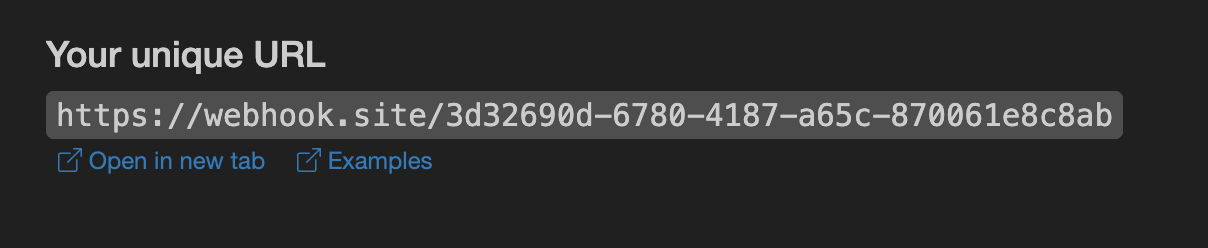
Copy this URL and use it as the webhook. The example URL is https://webhook.site/3d32690d-6780-4187-a65c-870061e8c8ab.
Next, set the callback_url field to the above webhook URL and fill in the corresponding parameters, as in the following code:
import requests

url = "https://api.acedata.cloud/openai/images/generations"

headers = {
    "accept": "application/json",
    "authorization": "Bearer {token}",
    "content-type": "application/json"
}

payload = {
    "model": "dall-e-3",
    "prompt": "A cute baby sea otter",
    "callback_url": "https://webhook.site/3d32690d-6780-4187-a65c-870061e8c8ab"
}

response = requests.post(url, json=payload, headers=headers)
print(response.text)
Run it, and you will immediately get a result like this:
{
  "task_id": "6a97bf49-df50-4129-9e46-119aa9fca73c"
}
After a short wait, you can observe the generated image result at the webhook URL, content as follows:
{
  "success": true,
  "task_id": "6a97bf49-df50-4129-9e46-119aa9fca73c",
  "trace_id": "9b4b1ff3-90f2-470f-b082-1061ec2948cc",
  "data": {
    "created": 1721626477,
    "data": [
      {
        "revised_prompt": "A delightful image showcasing a young sea otter...",
        "url": "https://dalleprodsec.blob.core.windows.net/private/images/..."
      }
    ]
  }
}
You can see the result contains a task_id field, and the data field contains the same image generation results as synchronous calls. The task_id field allows task association.
¶ Error Handling
When calling the API, if an error occurs, the API will return the corresponding error code and message. For example:
400 token_mismatched: Bad request, possibly due to missing or invalid parameters.400 api_not_implemented: Bad request, possibly due to missing or invalid parameters.401 invalid_token: Unauthorized, invalid or missing authorization token.429 too_many_requests: Too many requests, you have exceeded the rate limit.500 api_error: Internal server error, something went wrong on the server.
¶ Error Response Example
{
  "success": false,
  "error": {
    "code": "api_error",
    "message": "fetch failed"
  },
  "trace_id": "2cf86e86-22a4-46e1-ac2f-032c0f2a4e89"
}
¶ Conclusion
Through this document, you have learned how to easily use the official OpenAI DALL-E image generation features via the OpenAI Images Generations API. We hope this document helps you better integrate and use this API. If you have any questions, please feel free to contact our technical support team.